What is the Statement Editor?
The Statement Editor enables you to create and work with your company's Sustainability Statement. All data from both automatic, and manual consolidation is structured according to ESRS guidelines and Position Green's in-house sustainability experts. The standard allows you to present information in a relevant way, rather than strictly following a datapoint-by-datapoint format.
Getting started with the Statement Editor
1. Ensure that consolidation of data is complete and you are ready to generate your statement
2. Go to the ESRS menu, click Sustainability Statement, and start the statement generation by clicking Get started. It will take a moment to load while it imports the consolidated responses.
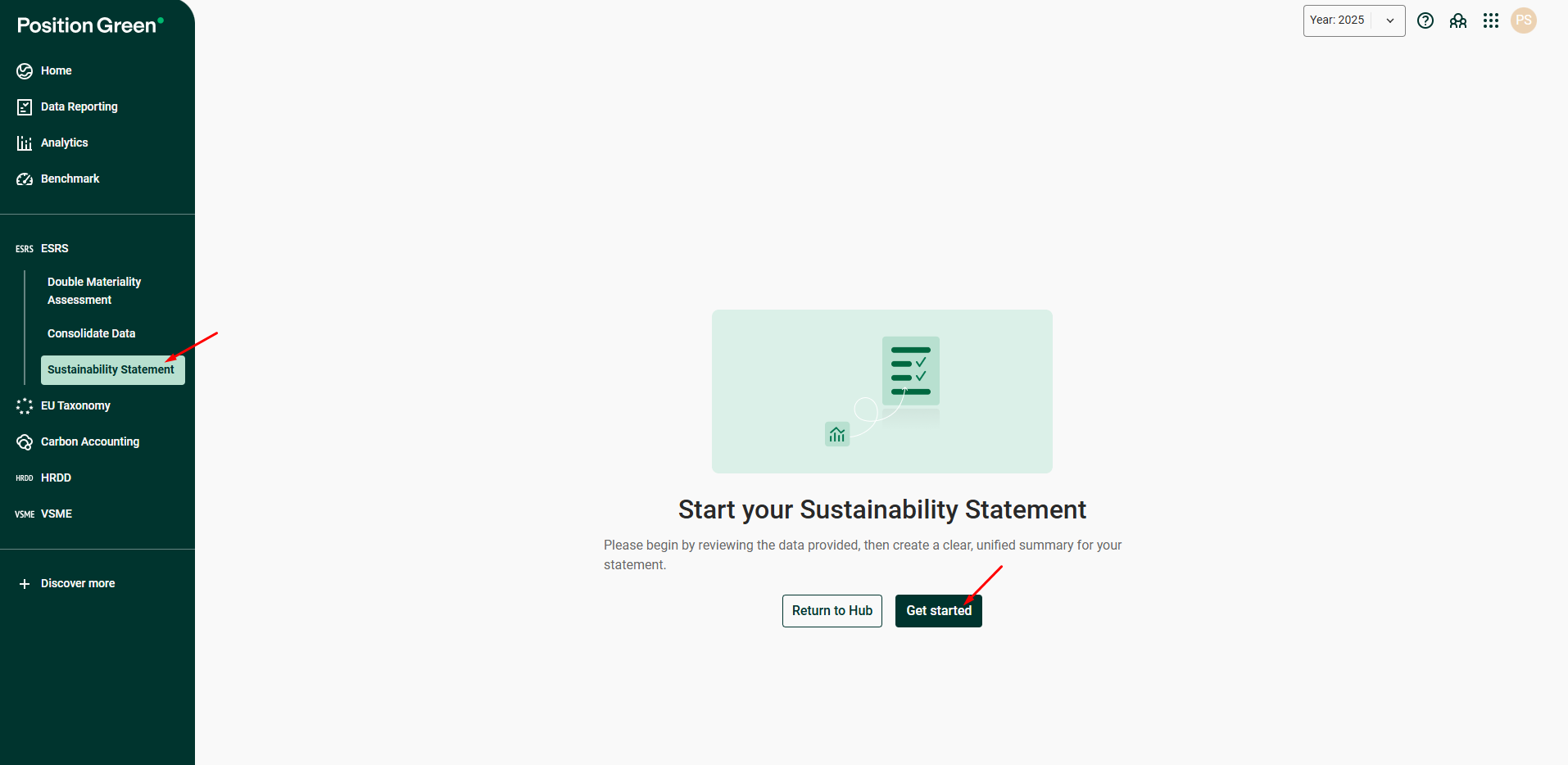
We recommend consolidating as many disclosures as possible before generating the statement, since adding data in the Data Reporting view, and running the consolidation again will overwrite your existing narrative, unless you've already edited it from the Statement Editor.
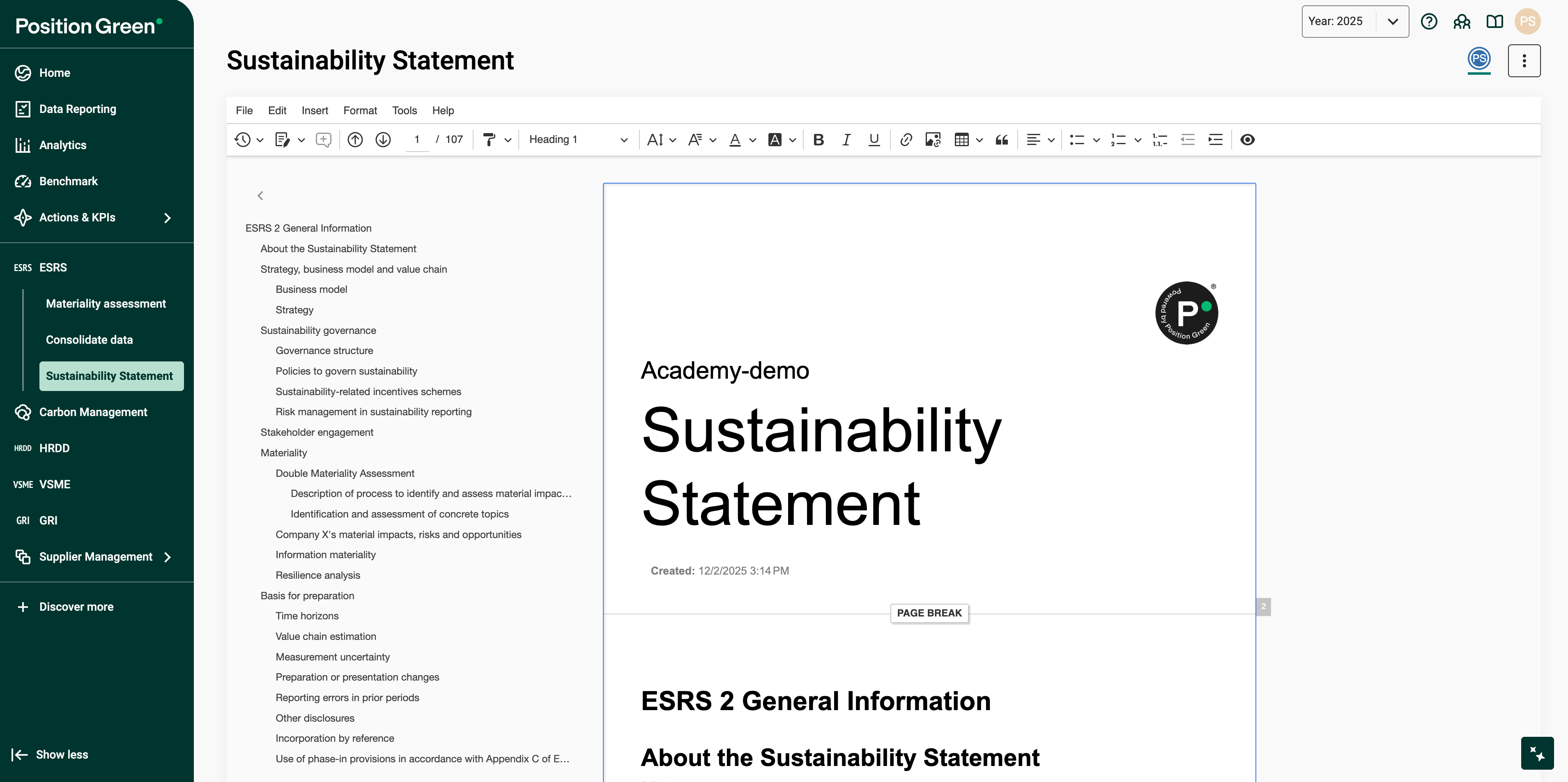
When being created, the Sustainability Statement will only include material disclosures, based on Materiality assessment results. Please note that this functionality does not apply to E5-5 (waste), and E5-5 (resources outflows), or disclosures that does not have content controls connected to them in the statement (e.g. Animal wellfare) due to technical limitation.
Writing the Statement Statement
Write your Sustainability Statement
The Statement Editor has many features available as in online word editors, and allows you to freely edit the contents of your Sustainability Statement.

Show/ Hide questions and instructions
Questions and instructions have been added to the Statement Editor to help you understand how to structure your report and ensure consistency across your reporting. These texts are visible while working in the Statement Editor but can easily be hidden when not needed, just clicking on the “Show/ Hide questions and instructions” icon, located in the statement toolbar.

You can decide whether you want to include the questions and instructions when exporting your statement.
Update the statement
When a consolidated response has been updated in Consolidate Data you will need to click Update in the Statement Editor for this change to be included in the Sustainability Statement.
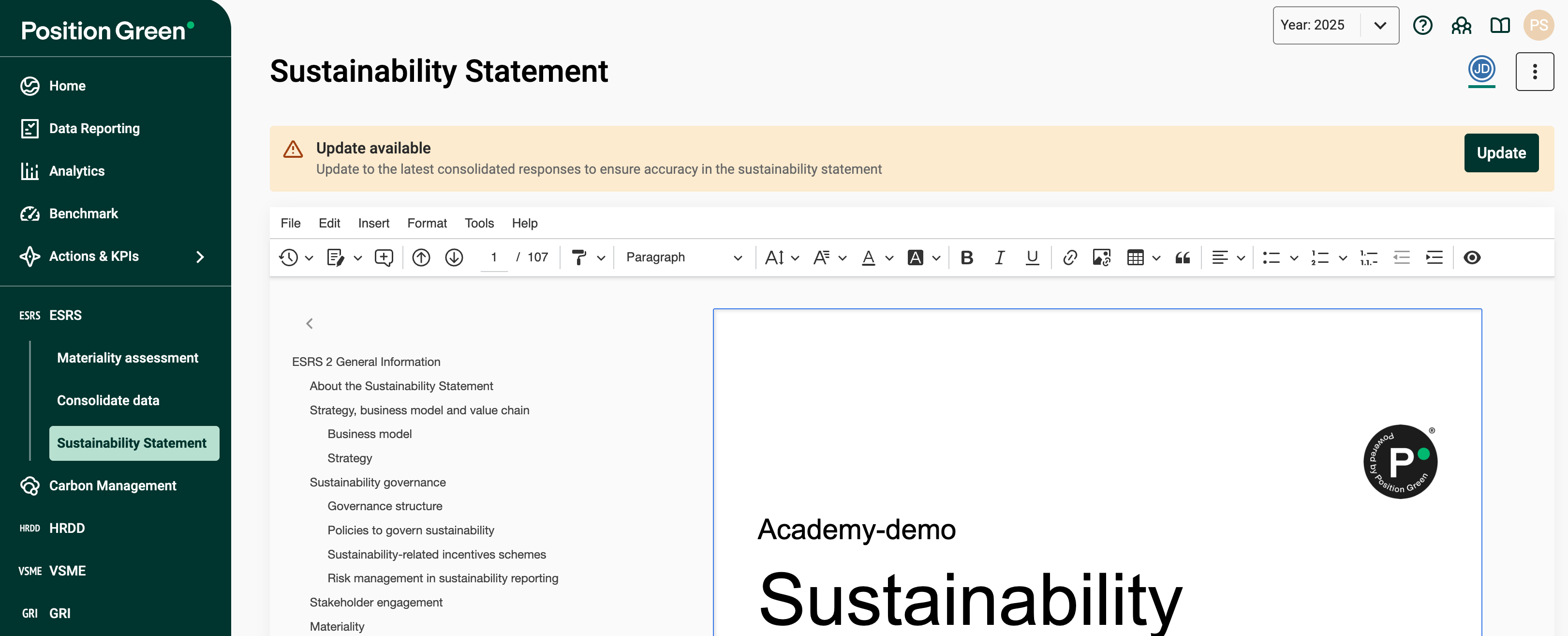
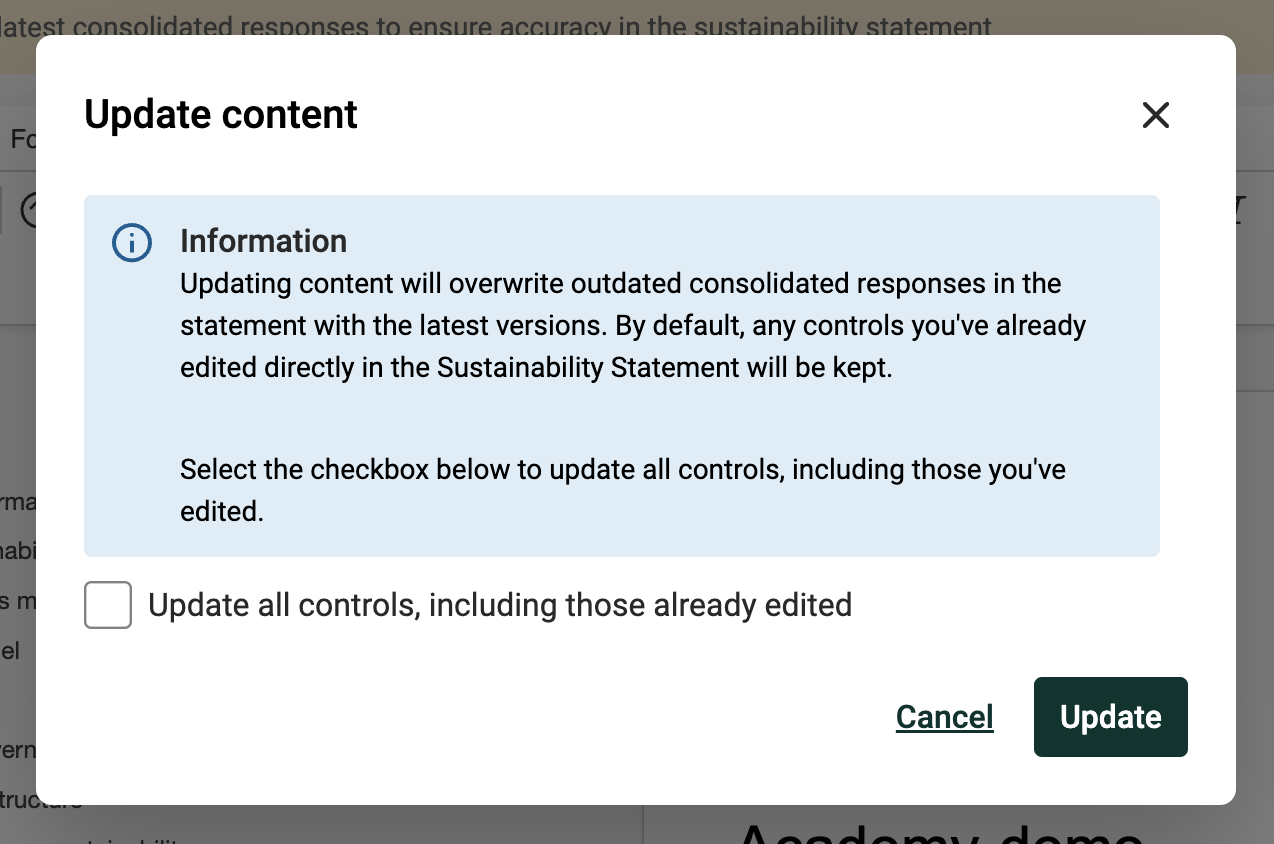
Keep in mind that Update button will replace outdated consolidated responses in the statement with updated ones, excluding any text that has already been edited directly in the Sustainability Statement.
You can also decide to update all text, including responses already edited from the Sustainability Statement by ticking the checkbox in the pop-up below:
Navigate the statement
An outline is accessible on the left-side navigation to help you navigate the statement, where headings with Heading 1, 2, 3, 4, and 5 formats are automatically included.
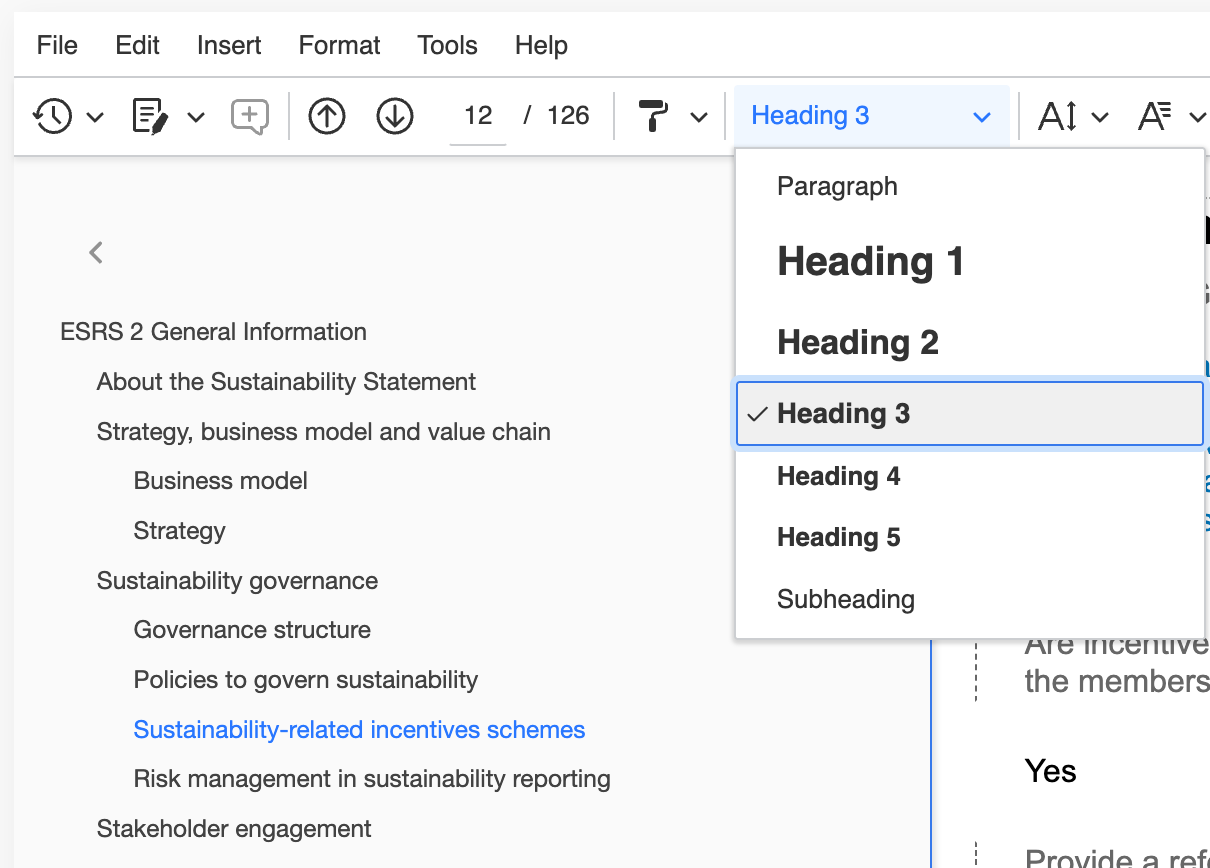
You can easily remove headings from the left-side navigation by setting them as Paragraph or Subheading format.
Collaboration within the Statement Editor
Work simultaneously
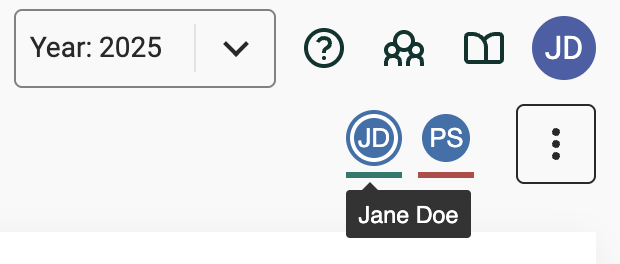
The Statement Editor allows for simultaneous editing: you will be able to see who else is editing the statement in the upper right corner of the Statement Editor.
Add comments
The Statement Editor allows you to comment on selected texts and then track those comments and changes.


Access revision history
This allows you to save a current version of your statement, and revisit previous versions.

Sharing your report with others
Export to Word
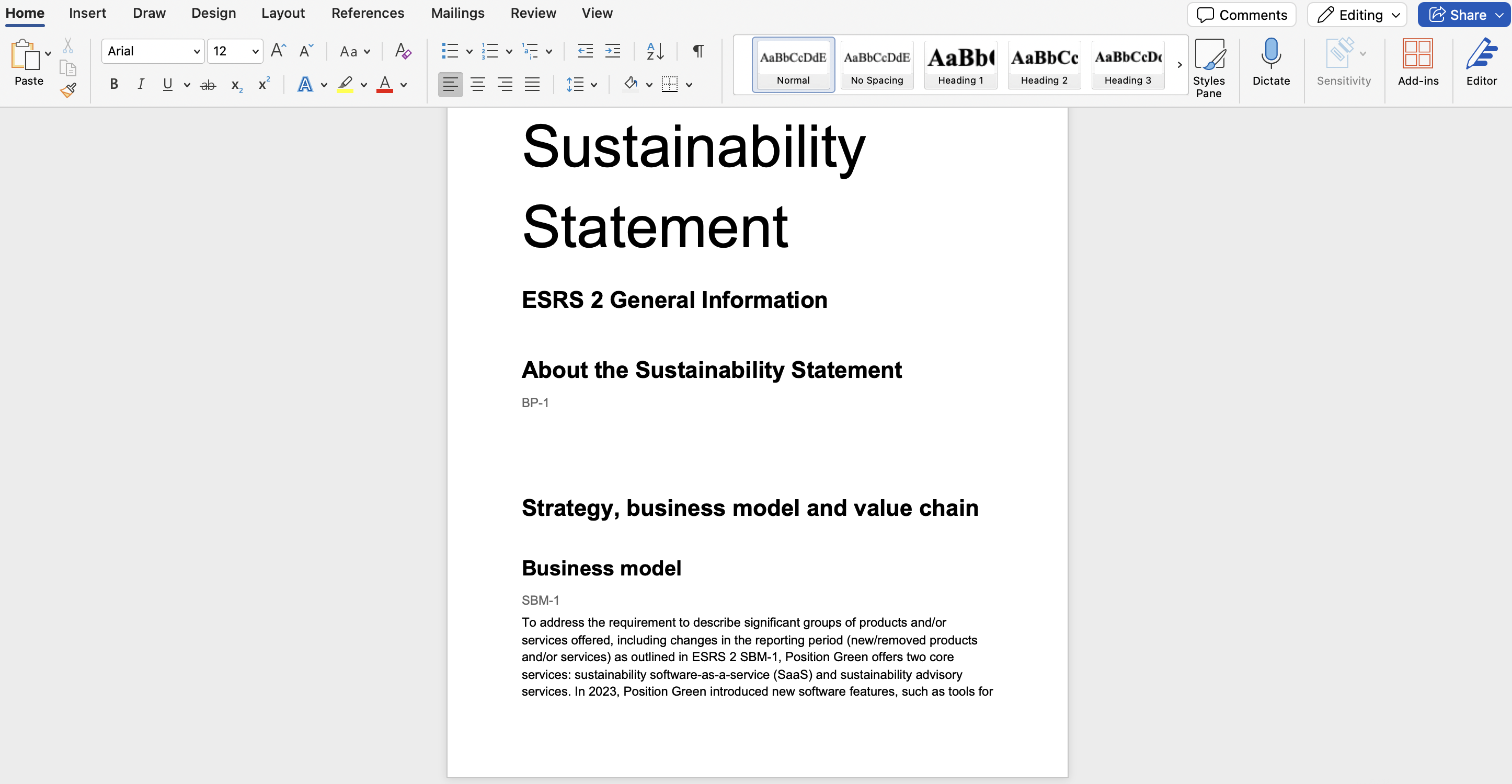
This feature makes it possible to export to Microsoft Word to share your report with others, and continue working in that application. Any comments made in the Statement Editor will also be visible in the exported Word-file.

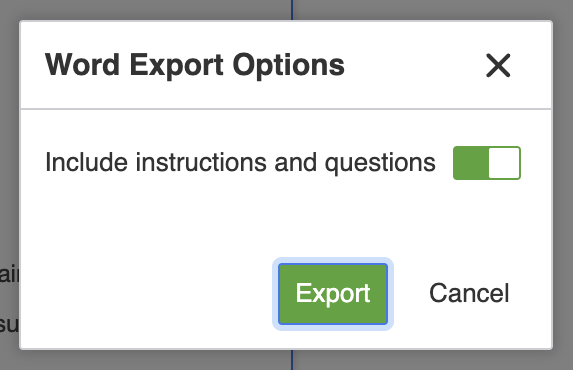
When exporting your statement, a pop-up window appears with export options: you can choose to whether include, or exclude the questions and instructions using the toggle before clicking on Export.
Getting ready for audit-processes
Start adding datapoint IDs
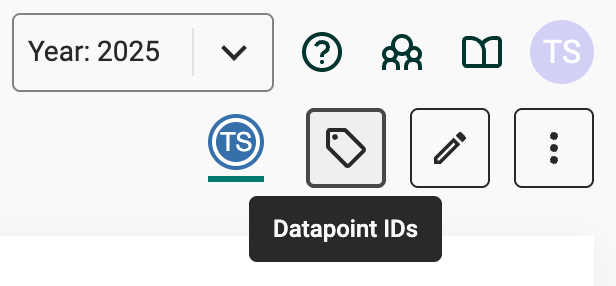
Datapoint IDs are not visible in the Sustainability Editor when your create your statement. To start with the tagging process, you need to click on the tag icon on the right-side of the upper banner.
Automatically tag your content
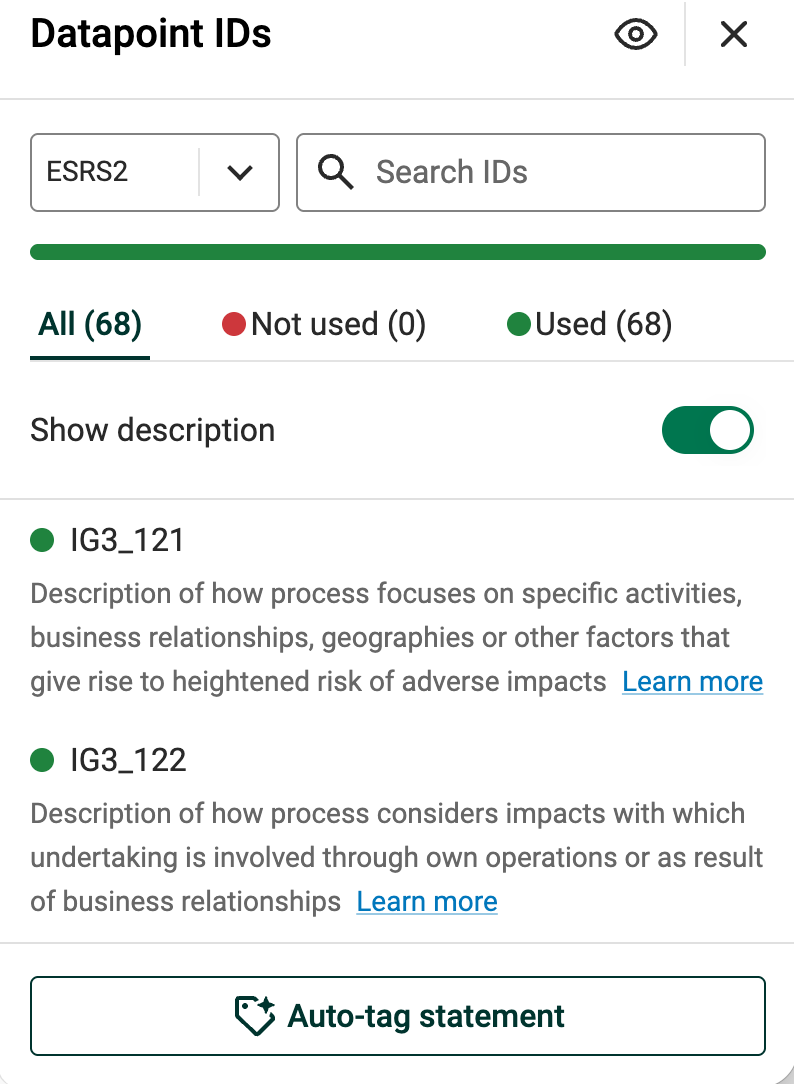
You can automatically tag your content with datapoint IDs by clicking on Auto-tag statement. This automatic tagging is based on the mapping realized by our sustainability experts.
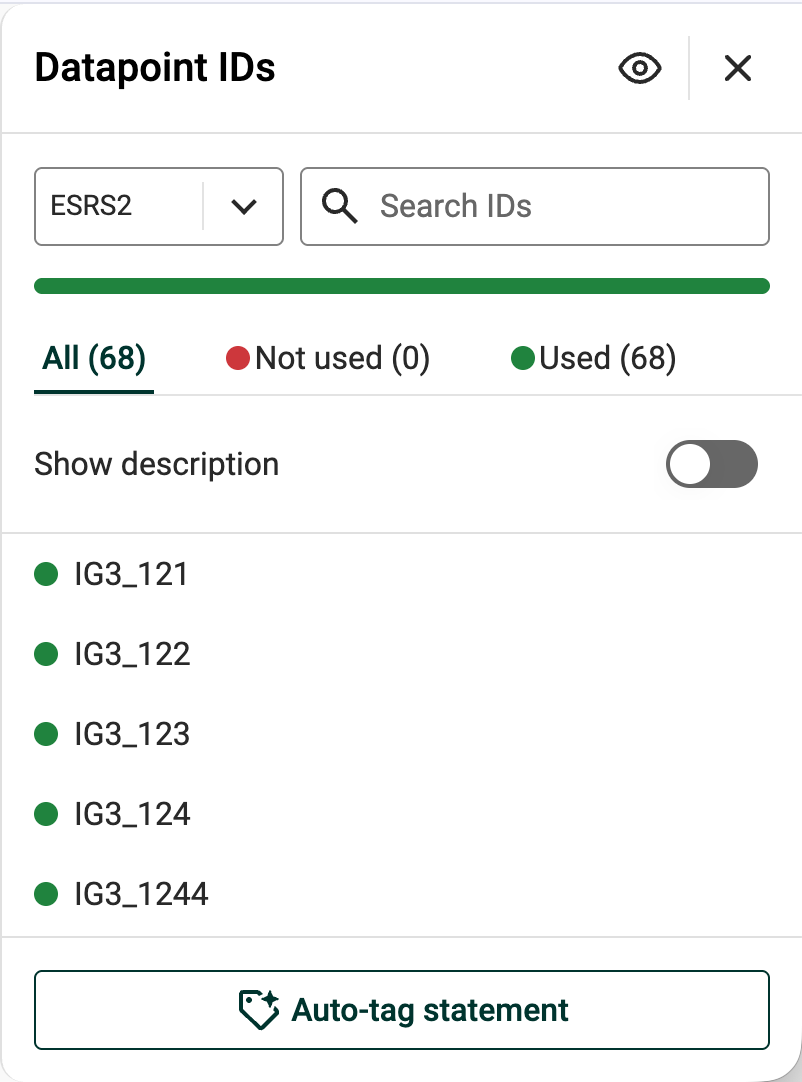
The Auto-tag functionality will automatically add datapoint IDs to all content included in your statement, based on a mapping done by our sustainability experts. You can easily edit the selection later on.

The tags, or datapoint IDs are listed under the Used category, in the right-side panel, and will show up as a comment along the statement.
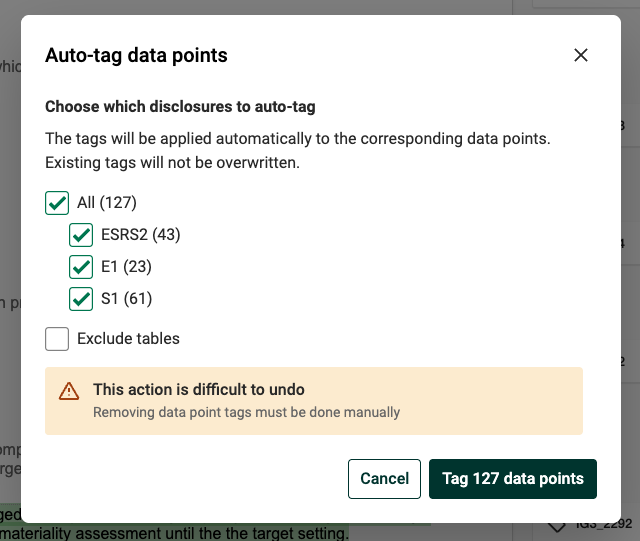
It is also possible to decide which sections of your statement you want to start with by selecting the disclosures in the below pop-up window.
Manually add datapoint IDs
Datapoints IDs can be manually added, or edited directly in the text by selecting a word, or a sentence. These tags are also listed under the Used category, in the right-side panel, and show up as comments along the statement.

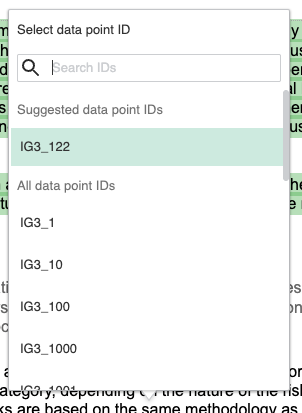
When clicking on the tag icon, you can see a list of datapoint IDs.
Suggested datapoint IDs are material references identified by the mapping done by our sustainability experts. However, it is also possible to select any other datapoint IDs browsing through All datapoint IDs.
It is possible to move some text from a section to another, carrying the datapoint IDs, using copy-paste, or copy-cut functionalities.
Remove datapoint IDs
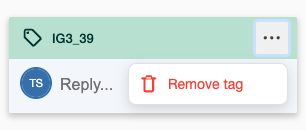
Datapoints IDs can be removed manually from the comment functionality along the statement. Removed tags will then show in the Not used category, in the right-side panel.
Keep track on your progress
Datapoints IDs are being listed in the right-side panel, and clustered into three different categories:
- Used: Datapoints IDs that have been added to your statement, whether it is automatically, or manually.
- Not used: Datapoints IDs that are material, and that have been removed from your statement, or that were attached to a deleted part of the text.
- All: All material datapoints IDs whether it is used, or not in your statement, but not the full list of EFRAG datapoint IDs.
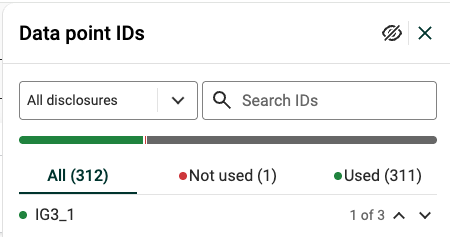
The 1 of 3 count visible next to the datapoint ID refers to which occurrence you are navigating to across the statement if it has been referenced more than once.
The toggle Show description enables users to access the corresponding ESRS description attached to each datapoint ID.
Export your report with tagged datapoints
You can export your report, which will include the tagged datapoints, and comments. You can hide/ edit/ delete the comments directly in your Word. document.
Starting a new Sustainability Statement
Delete your Sustainability Statement
If you would like to delete the existing statement and start over, you can do so by going to the 3 dots in the upper right corner and clicking "Delete". Before deleting the statement it's recommended to download it as a Word-file.


Was this article helpful?
That’s Great!
Thank you for your feedback
Sorry! We couldn't be helpful
Thank you for your feedback
Feedback sent
We appreciate your effort and will try to fix the article