The Users view shows all users in the Position Green account. To find it, click the user icon in the top right corner, go to Company setup, and select Users.
An unlimited number of users can be created.
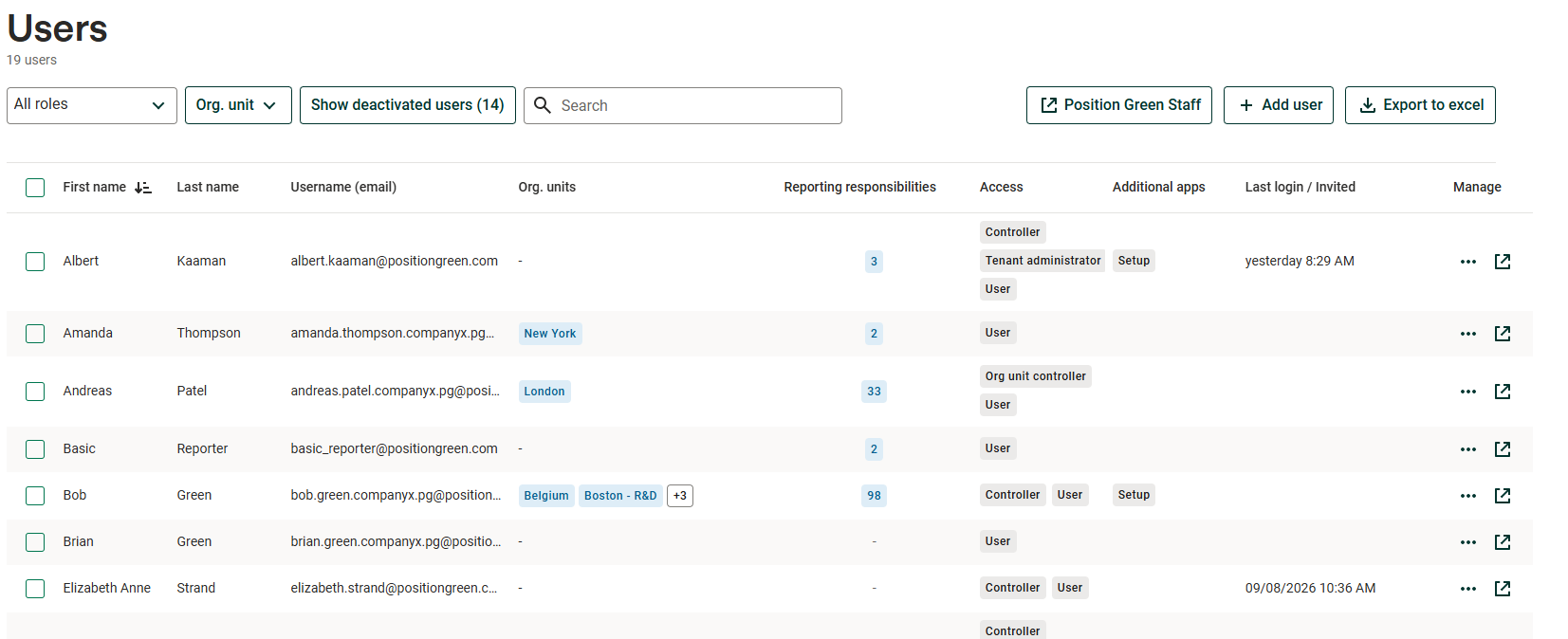
Users view in Company setup
Add a new user
When adding a new user, either A) assign the user to org.units and assign responsibilities, or B) transfer an existing user's responsibilities to the new user. Then invite the user to the platofrm
- Add a new user
- Connect a user to an organizational unit
- Transfer responsibilities from one user to another
- Send an invitation to the platform
Add multiple users
To add users in bulk, contact the Position Green team.
See access rights and responsibilities
You have three options in the "Users" view to access "User details"
- The listed org units shows the organization units the user is controller of or responsible for, collaborates on or audits. Click the org unit names for details
- Click the number of reporting responsibilities.
- Open the Manage menu by clicking "..." then "User details".
Transfer responsibilities
Oen the Manage menu by clicking "..." then "Transfer responsibilities". For details see Transfer responsibilities from one user to another
Read more about user management:
Read more about user roles:
Was this article helpful?
That’s Great!
Thank you for your feedback
Sorry! We couldn't be helpful
Thank you for your feedback
Feedback sent
We appreciate your effort and will try to fix the article