Thresholds on numeric questions allow reporters and controllers to detect deviations in input data.
Viewing and commenting on a deviation
Indications of whether entered data is within or exceeding the acceptable deviation are shown in:
- Data reporting view. For reporters and collaborators to see thresholds, they need to have:
- Access to historic data on the measures they report on. Users with Setup access can grant access to previous values at setup level under Settings or at measure level in Company setup.
- A reference period set. The diff is calculated by comparing values from the active period and the reference period.
- A threshold set (see below).
- Review data view. Deviations are shown on each org.unit’s answer. Learn about the Review data view
Color coding of deviations
- Blue = Within the acceptable threshold
- Yellow = Exceeding the acceptable threshold
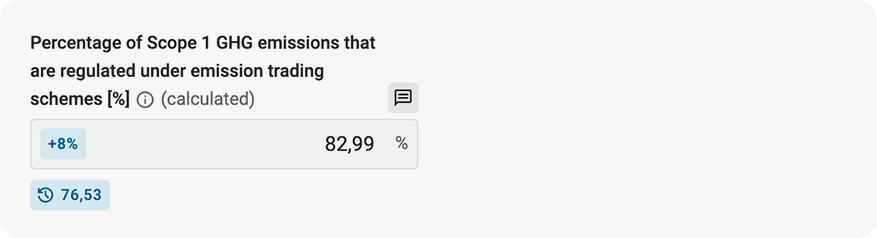
Input data within the acceptable threshold
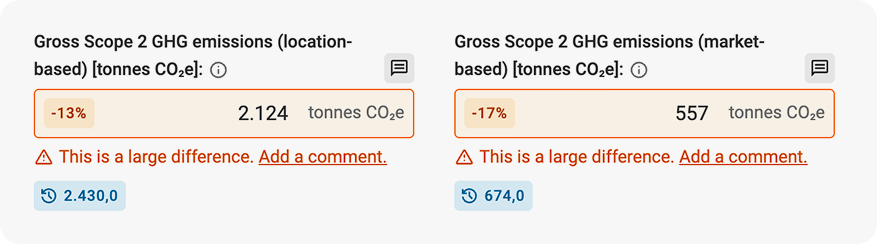
Input data exceeding the acceptable threshold
Explain why entered data exceeds a threshold by using comments.
Limitation: Deviations are not available for the question type Repeatables.
Make thresholds warning comments mandatory
To make it mandatory for collaborators and reporters to explain deviations exceeding threshold, go to "Settings → Registrations → Validation → Threshold deviation”. See Registration settings.
When the setting is enabled:
- Collaborators are prompted to add missing comments before they can click Notify responsible in "Data reporting".
- Responsible reporters are prompted to add missing comments before they can Confirm the registration.
- Once the required comments are present, the reporter is encouraged to review the comments before confirming.
- The requirement applies to editable numeric fields, not calculated fields. Calculated fields keep their percentage deviation badge.
- Controllers can faster see if deviations are explained when reviewing in "Review data" filtering on deviations.
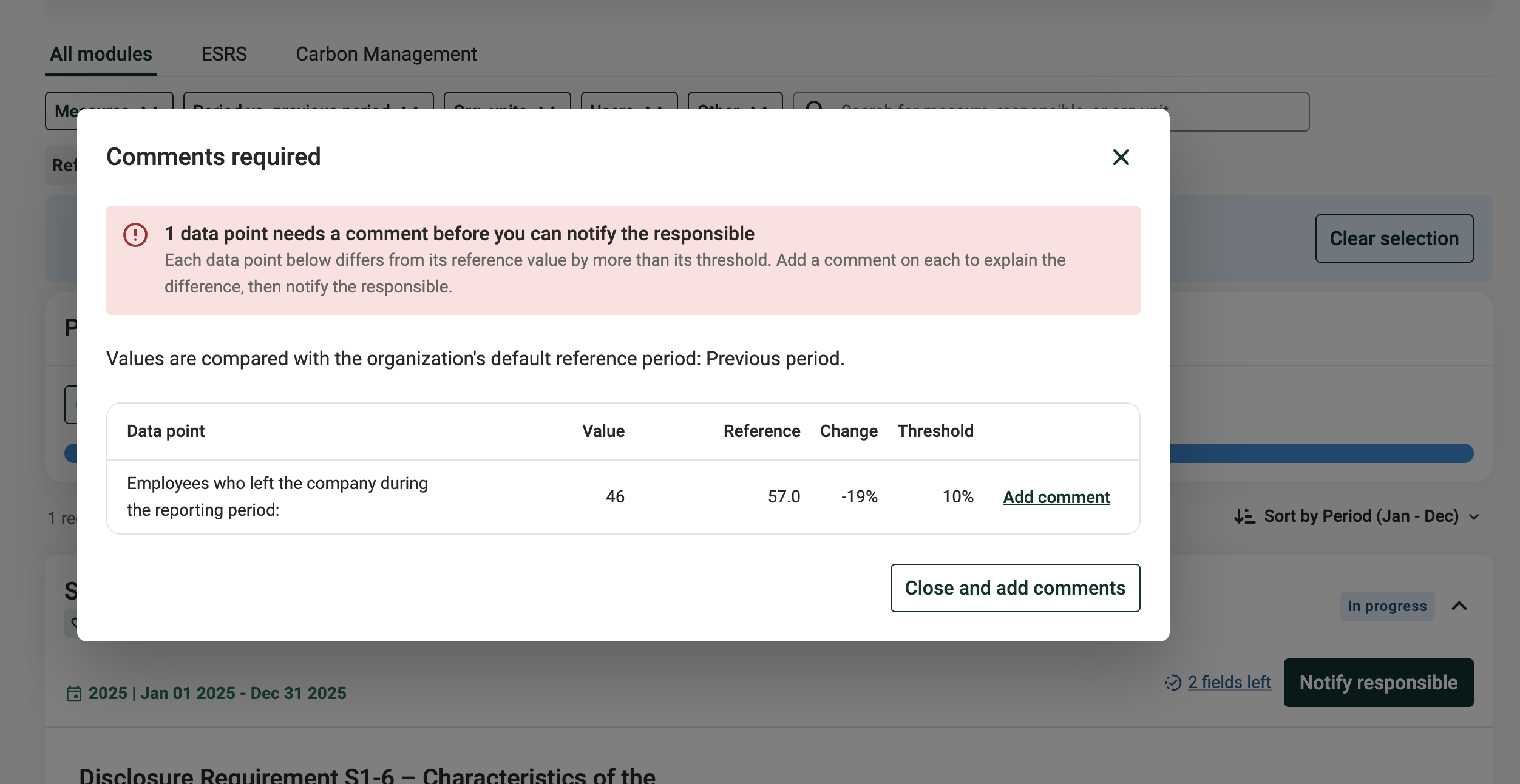
Mandatory threshold warning comments: Example of when a collaborator need to add a comment when the setting is enabled.
Set thresholds on three levels
- General threshold. Applies to all measures, regardless of reporting period and org.unit.
- Measure specific threshold. Applies to all numeric questions in the measure.
- Individual measure point threshold. Applies to the specific question.
Override thresholds
A threshold set at measure point level overrides thresholds set at measure and general level. A measure-level threshold overrides the general threshold.
Add a general threshold
Go to Settings > Registrations > General threshold. Set a general threshold between 0 and 1000. This setting is only available to users with Setup access.
Add a threshold to a measure
In Company setup under Measures, configure a threshold for all numeric fields in a measure: click “Edit measure”, add the threshold and save.

Adding a threshold to a measure in Edit measure
Add a threshold to a single measure point
To add a specific threshold for a single measure point or override the threshold assigned to the measure, go to the Measure builder for the specific measure point. Read more on the properties of numeric inputs.
Read more on thresholds in relation to number, sum, and calculation measures.
Was this article helpful?
That’s Great!
Thank you for your feedback
Sorry! We couldn't be helpful
Thank you for your feedback
Feedback sent
We appreciate your effort and will try to fix the article