TABLE OF CONTENTS
- What is the Emission Mapper?
- Who has access?
- Where do I access the Emission Mapper?
- What data should I upload?
- What happens after upload?
- Import and results
- Making updates after import
- AI usage and agreement
What is the Emission Mapper?
The Emission Mapper automatically maps financial data from your system to emission factors for Scope 3, Category 1: Purchased Goods and Services.
It helps you convert company-wide purchase data into emissions without manual factor matching. The process is AI-assisted and can be reviewed and adjusted before import.
The Emission Mapper uses EXIOBASE global emission factors.
Who has access?
- Available to select Carbon Management reporting setups.
- Access is limited to users with the Controller role.
If you have questions about availability, please contact your Customer Success Manager.
Where do I access the Emission Mapper?
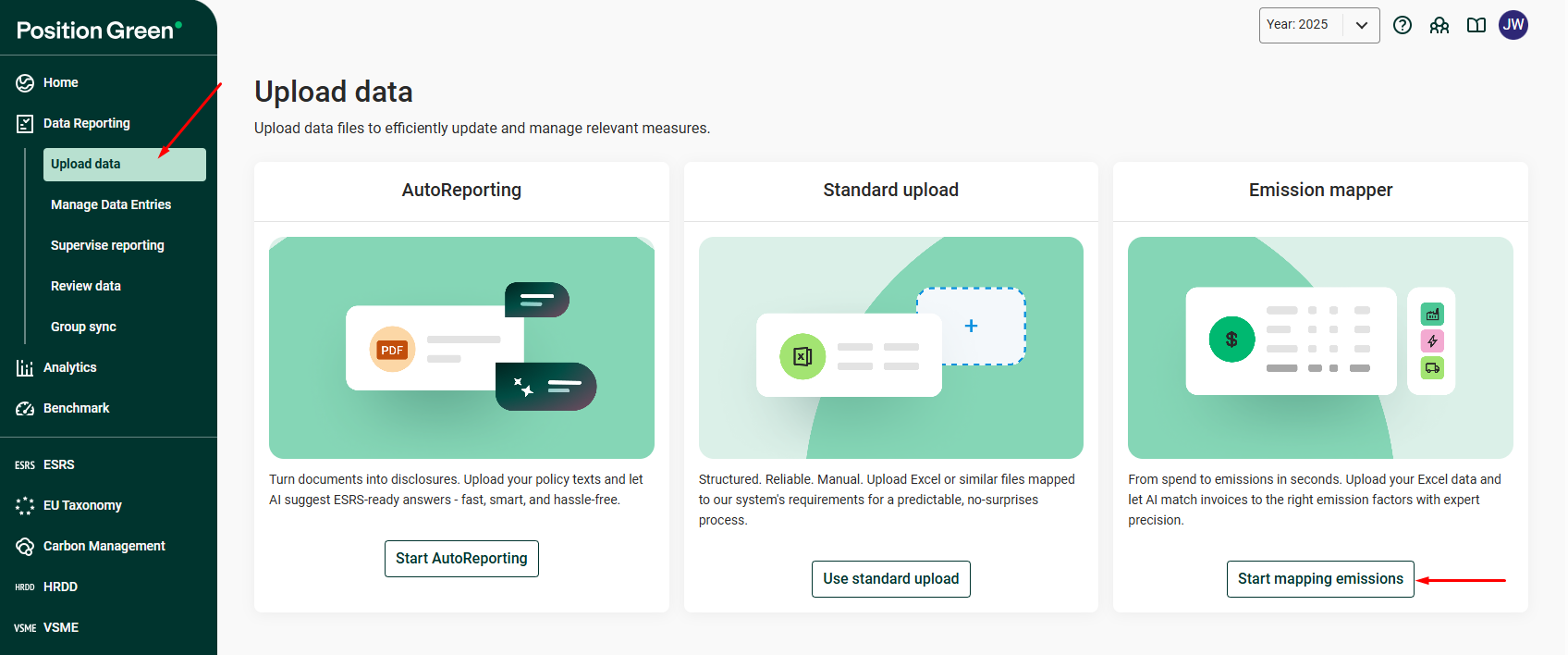
Once the measure has been added and generated, you can access the Emission Mapper from the Data Reporting menu.
- Go to Data Reporting in the left-hand menu.
- Select Upload data.
- Click Start mapping emissions.
Initial setup
Before you can upload data, the required measure must be added to your setup.
If setup has not yet been completed, please contact your Customer Success Manager.
What data should I upload?
Upload a company-wide extract from your financial system. This can be either:
- Account balances, or
- Transaction-level data
There is no need to pre-filter for Scope 3, Category 1. The Emission Mapper will identify which accounts are relevant for Category 1 and exclude the rest.
Required columns
Your file must include the following fields as separate columns:
- Account number
- Account name
- Amount
- Currency
Column headers do not need to match these exact names. The system will automatically detect the relevant columns, even if your file contains additional fields.
Optional (improves accuracy)
Including the following fields can improve mapping accuracy:
Supplier name
Transaction descriptions
Line-level detail
If transaction-level data is uploaded, entries will be summed to the account level before mapping.
What happens after upload?
Automated account inclusion and exclusion
The Emission Mapper will automatically:
Include accounts relevant to Scope 3, Category 1
Exclude accounts that are not relevant (for example, revenue or non-purchase accounts)
Accounts are separated into Included and Excluded tabs for review. In the Excluded tab, a reasoning column explains why an account was excluded:
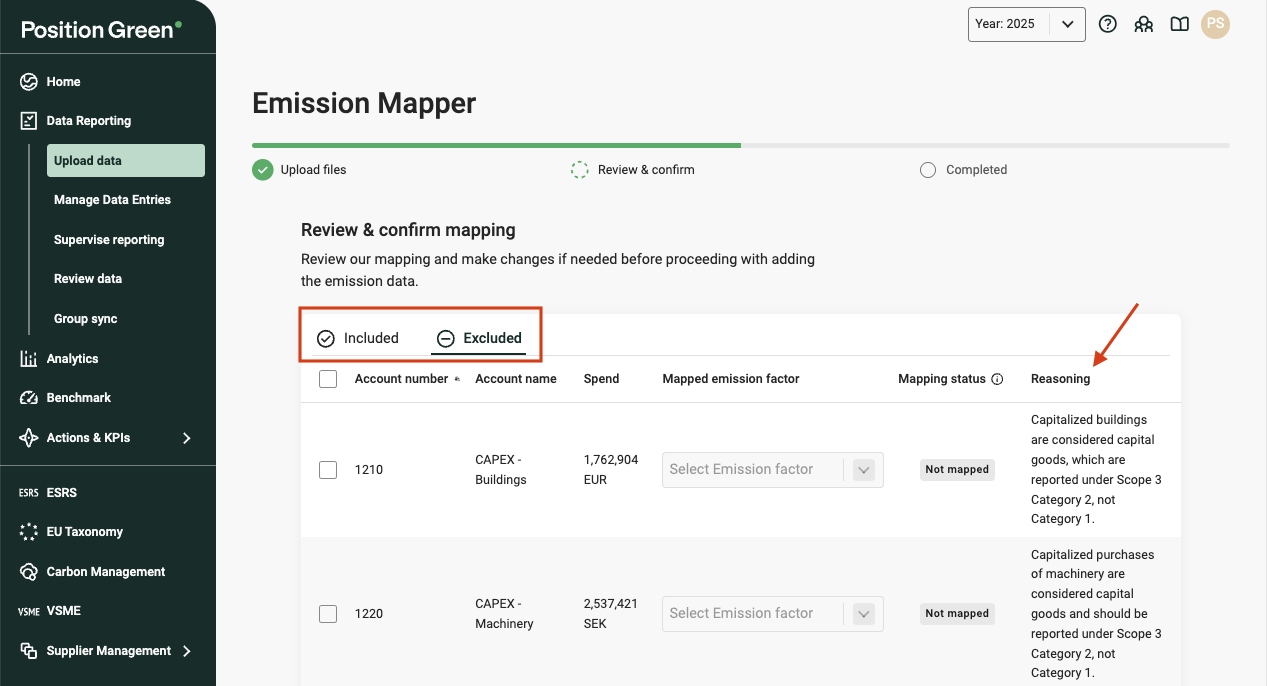
You can move accounts between Included and Excluded before confirming the import if you disagree with the AI’s classification.
Reviewing emission factor mappings
Each included account is mapped to an emission factor from the Emission Factor Library (source: EXIOBASE global emission factors).
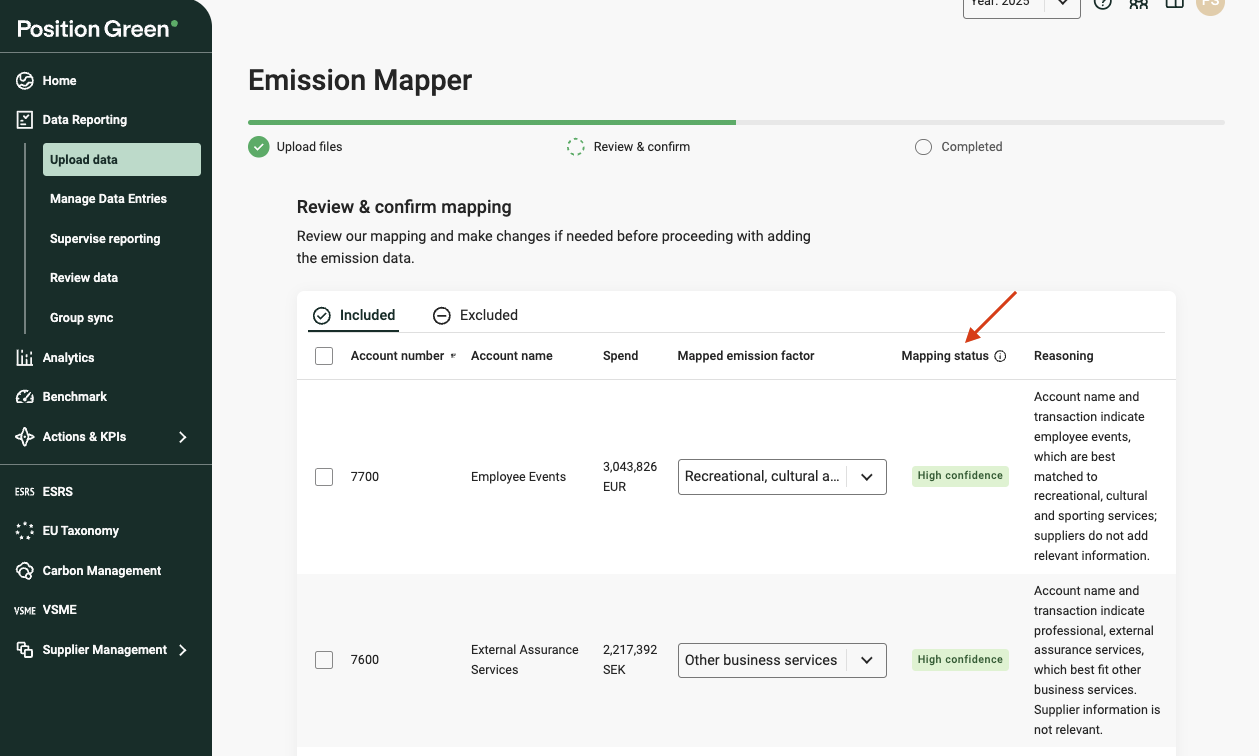
The Mapping status column shows the status of each account:
- AI confidence level (High, Medium, or Low) for AI-mapped accounts
- Unchanged if the account was previously mapped in an earlier import
- User-mapped if the mapping has been overridden
- Not mapped if no emission factor has been selected
You can filter on this column to target your review.
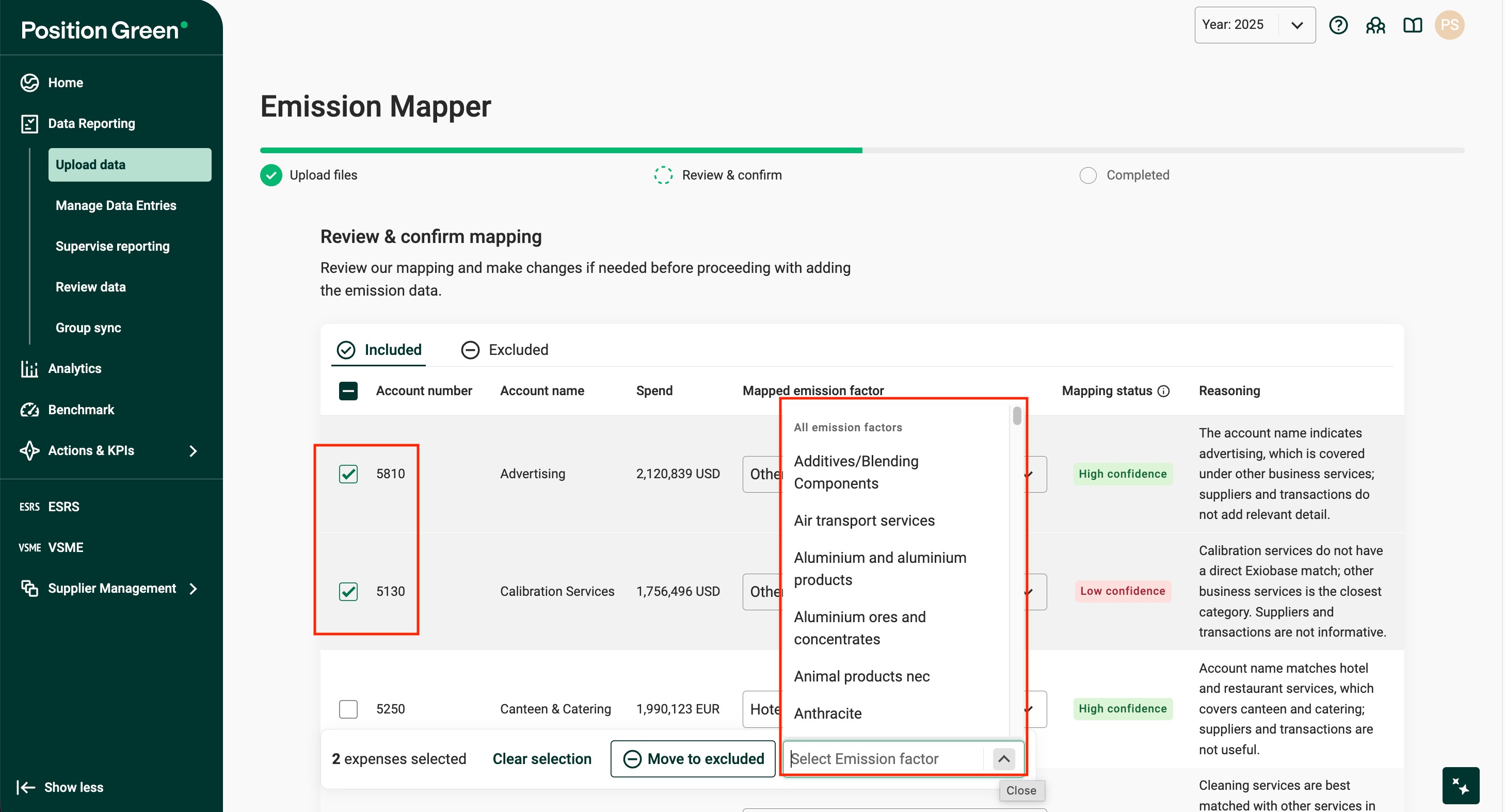
Mappings can be updated individually or in bulk.
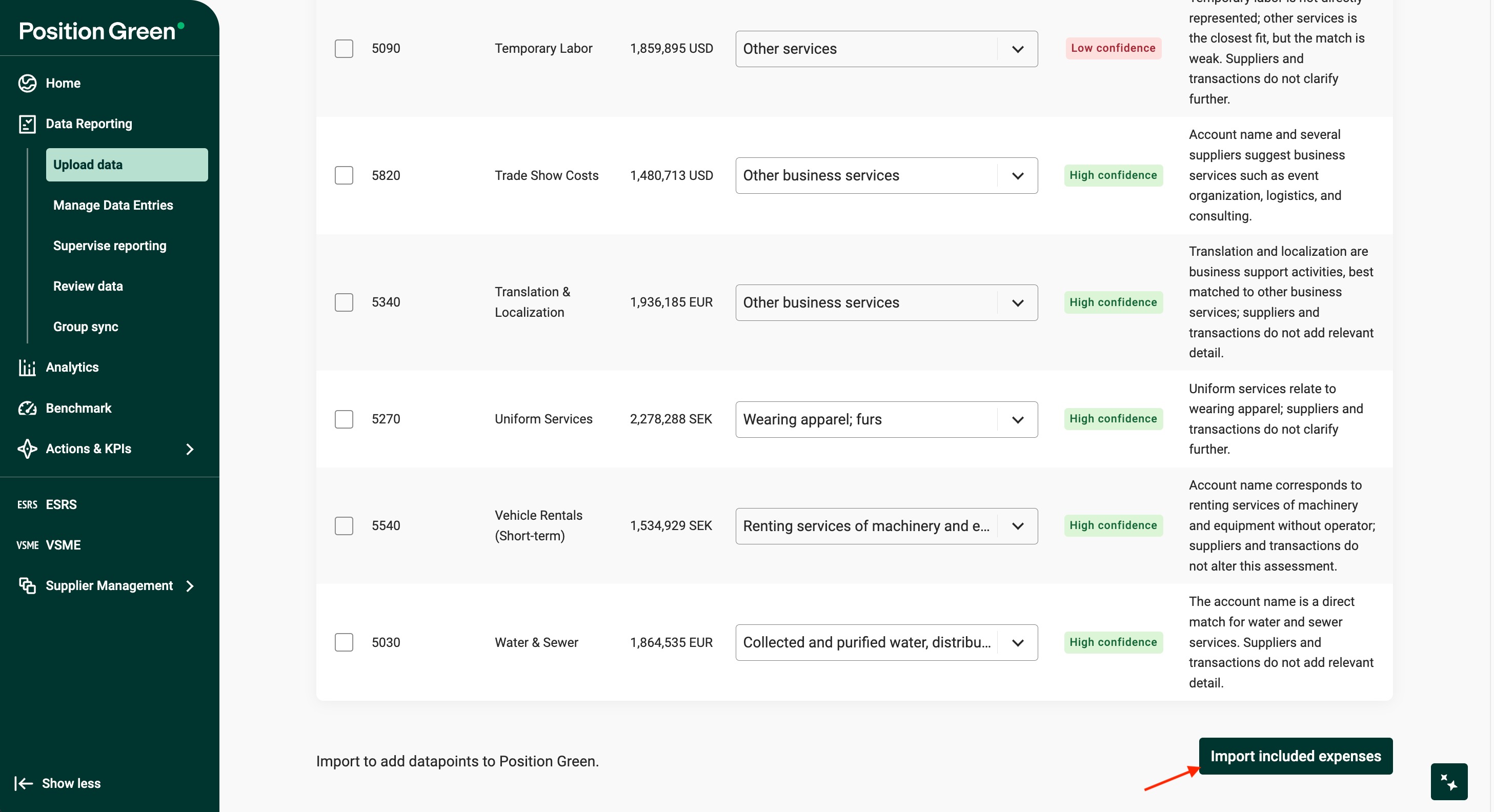
Once reviewed, included accounts can be imported.
Import and results
After confirmation, emissions are calculated automatically and added to the measure: Scope 3- Category 1: Purchased Goods and Services with Emission Mapper
Making updates after import
There are two ways to make updates after data has been imported.
1. Edit directly in the measure
Imported data is added to the measure: Scope 3- Category 1: Purchased Goods and Services with Emission Mapper
If you need to adjust a small number of mappings or review results more broadly, you can edit the mappings directly in the Data Reporting view. This can be useful if additional reviewers (who may not have access to the Emission Mapper upload flow) need to validate or adjust emission factors.
2. Re-import an updated file
You can also upload an updated file from your financial system.
When re-importing:
Existing accounts: Amounts will be updated based on the new file. Existing emission factor mappings will be retained unless you actively change them.
New accounts: Any new accounts not previously included will be processed by the Emission Mapper and mapped by AI if relevant for Scope 3, Category 1.
This allows you to update financials (for example, moving from preliminary to finalized numbers) without redoing your mapping work. Accounts that retain their prior mapping will appear with the status Unchanged in the Mapping status column.
Resetting the measure (advanced)
If you need to fully reset or restart a mapping from scratch, and you have the appropriate setup access, you can remove and regenerate the measure.
Go to Data Reporting → Manage Data Entries, search for Scope 3- Category 1: Purchased Goods and Services with Emission Mapper and remove it. Then go to Company Setup → Advanced → Generate Registrations, search for the same measure in the Measure Filter, select the relevant organizational unit, and add it again.
For detailed guidance, see our support articles on Manage Data Entries and Generating Registrations. If you do not have access or would like additional support, please contact your Customer Success Manager.
AI usage and agreement
The Emission Mapper uses AI-assisted mapping to suggest emission factor matches.
To use this feature, your organization must have accepted Position Green’s applicable AI terms as part of your customer agreement. If you are unsure whether this applies to your organization, please contact your Customer Success representative.
Was this article helpful?
That’s Great!
Thank you for your feedback
Sorry! We couldn't be helpful
Thank you for your feedback
Feedback sent
We appreciate your effort and will try to fix the article