When first entering data reporting a welcome message is displayed. Edit this text to share relevant information with users.

Example welcome page text
HTML can be used to format the text and appearance of the welcome page. The following commands are most commonly used:
Signify a header:
###Line break:
<br>Add a double-row line break:
<br><br> Enter bullets:
<ul>
  <li>Item 1</li>
  <li>Item 2</li>
  <li>item 3</li>
</ul>
Italic:
<i>Text in Italic</i>Bold:
<b>Text in bold</b>Link:
<a href="https://www.example.com/">This text is a hyperlink</a>Example of HTML code for a Welcome text:
<div>
  <header>Welcome!</header>
  Company X uses Position Green to help gather information and data regarding sustainability.
<br/>
Carbon Management deadlines for reporting:
<br/>
  <p>
  Deadlines for Carbon Management and ESRS reporting:
<br/>
  <ul>
    <li><strong>Scope 1-2 </strong> - Deadline January 31st</li>
    <li><strong>Scope 3 </strong> - Deadline February 28th </li>
    <li><strong>ESRS</strong> - Deadline March 31st</li>
 </ul>
</p>
If you have any questions contact
 <a href="mailto:bob.green@example.com">Bob Green</a>
  <br/>
  <br/>
For more information read more in our <a href="https://help.positiongreen.com/en/support/solutions">Help Guide</a>
</div>
The code above will render as follows on the Data reporting page:
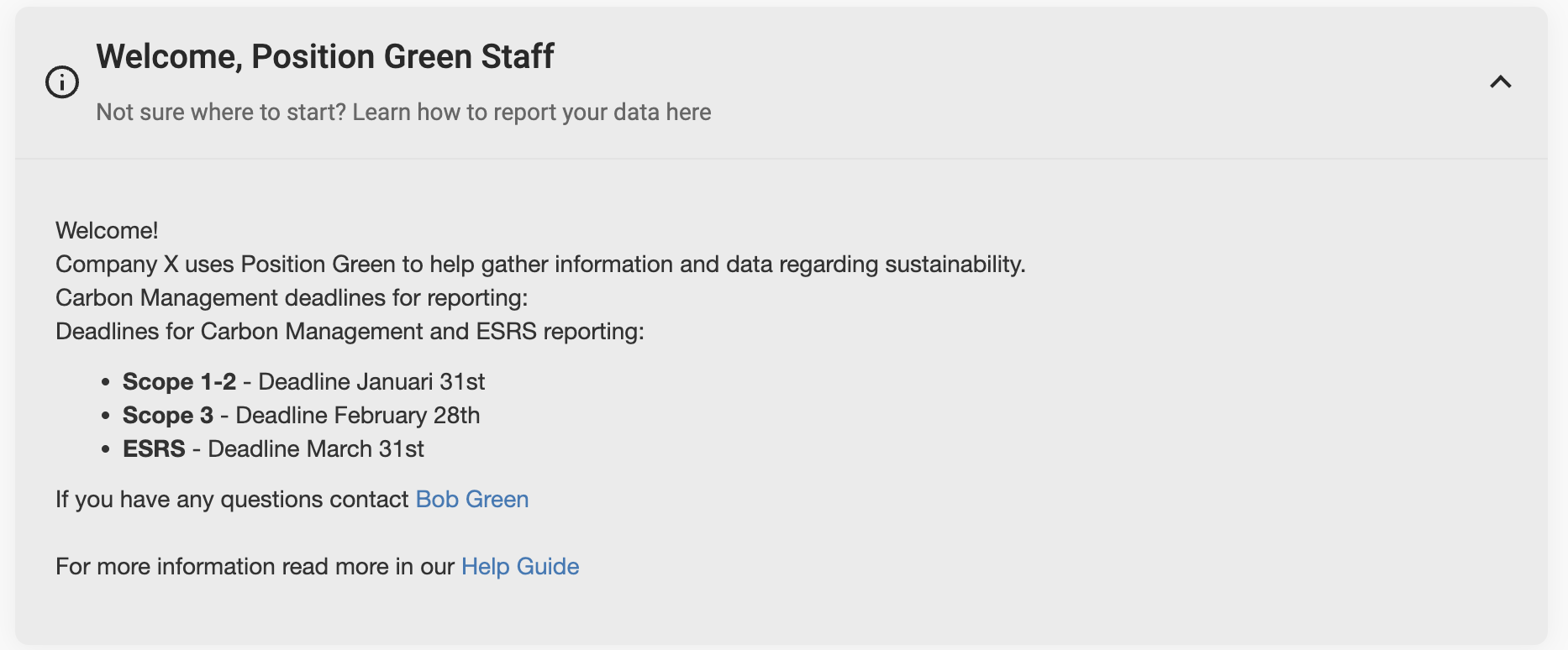
Example welcome text
Was this article helpful?
That’s Great!
Thank you for your feedback
Sorry! We couldn't be helpful
Thank you for your feedback
Feedback sent
We appreciate your effort and will try to fix the article