Supervise Reporting provides details about progress and responsibilities for registrations. A registration is where a reporter or collaborator enters, reviews, and submits data.
In "Supervise reporting" view you can:
- Monitor reporting progress and responsibilities for each reporter and collaborator.
- Send reminders to reporters and collaborators who have not yet have finished their assigned registrations.
- Monitor reporting progress for organizational units and the reporters under each unit
Supervise Reporting is available for users with the Controller role and Organizational unit controllers.
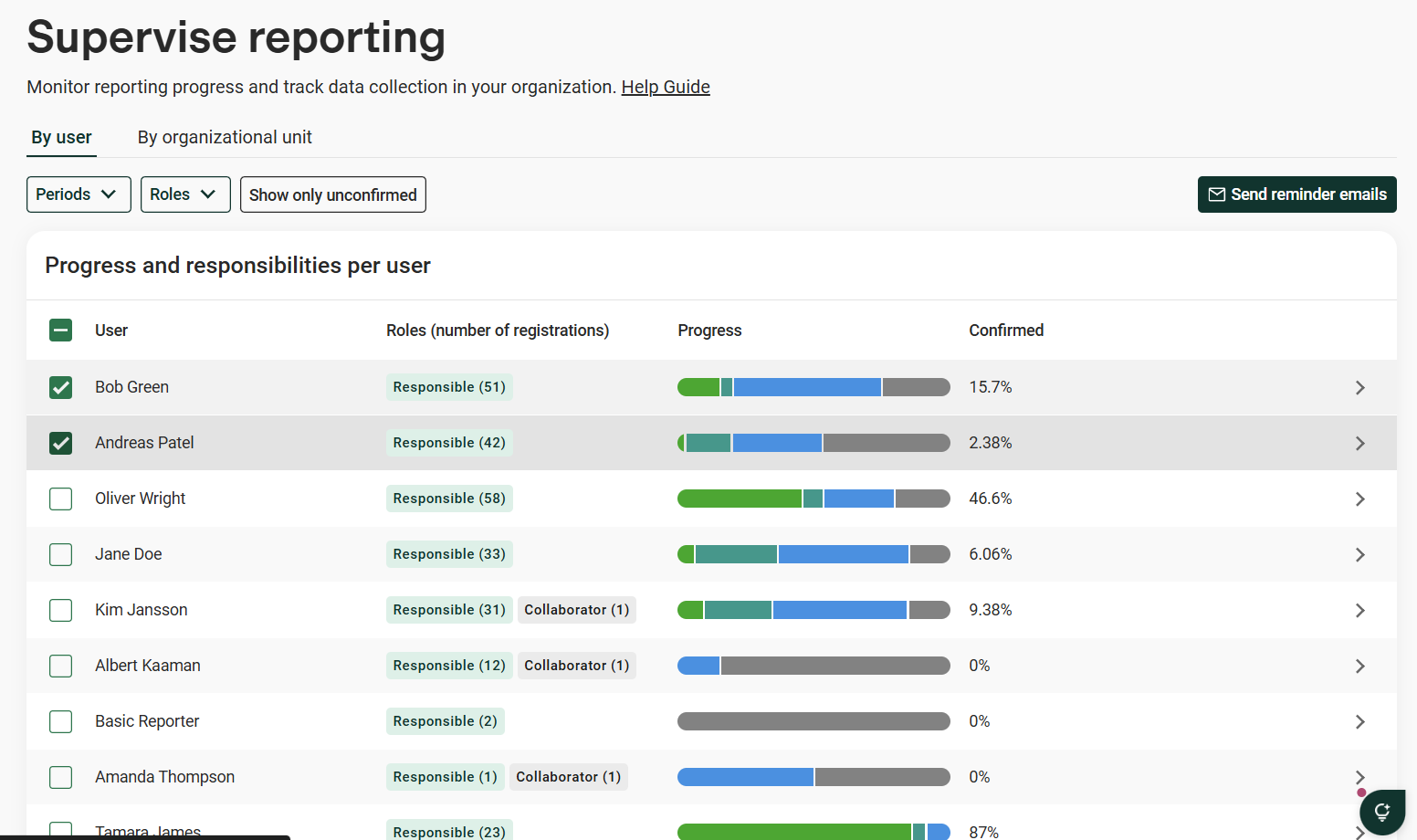
Monitor reporting progress and responsibilities by reporter
For each user you can see:
- Name (User column)
- Responsibilities. Number of registrations where the user is responsible reporter or collaborator.
- Progress:
- Progress status as a percentage for "Not started", "In progress", "Ready to confirm", Confirmed"
- Percentage of confirmed registrations.
- Link to the Data reporting view filtered on the selected users.
Send reminders to reporters and collaborators
Make sure to get the data in on time by sending reminders.
- Filter if you want to narrow down who should receive the reminder
- "Period": Reporting period
- "Roles": All, Reporters, Collaborators
- "Show only unconfirmed": Include only users with a least one registration that is not yet confirmed.
- Select the users you want to remind.
- Click "Send reminders"
- Edit the email text if needed.
- Click "Send"
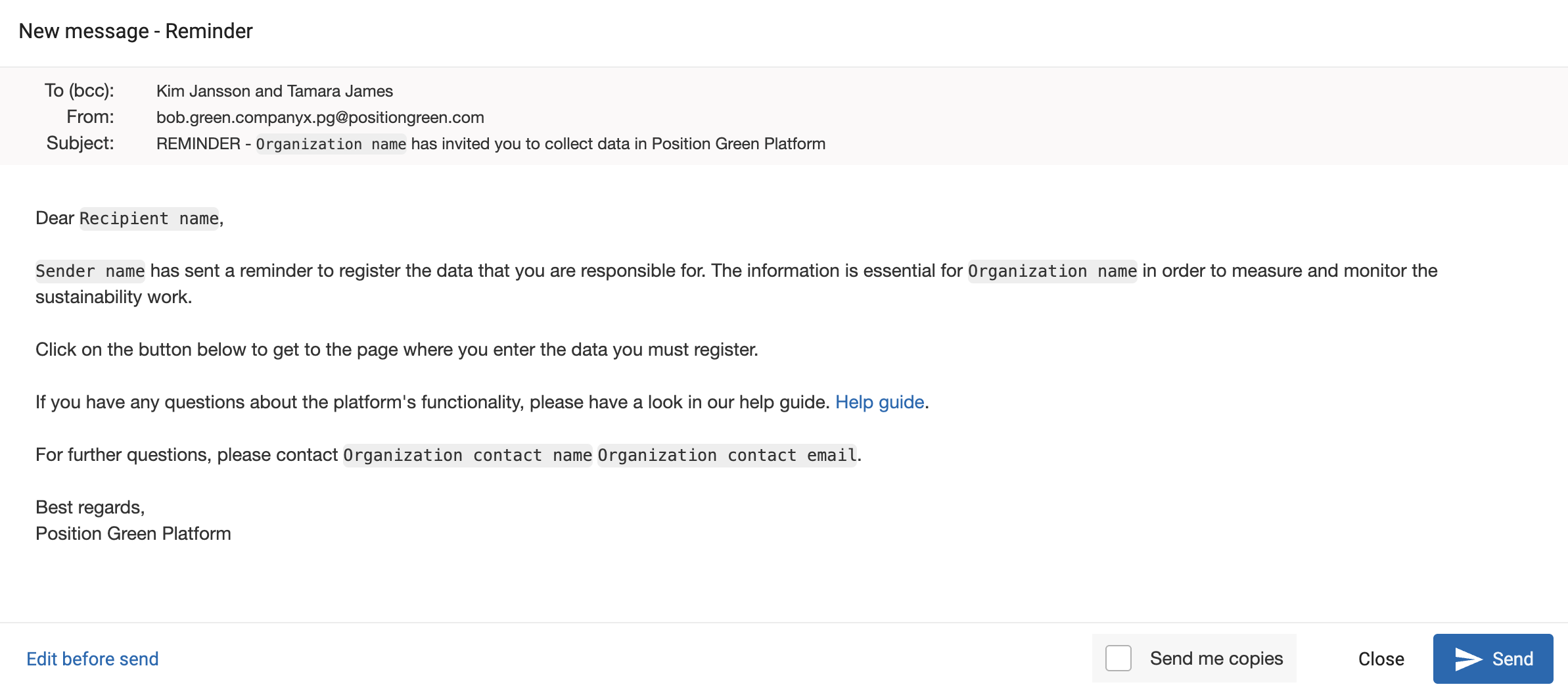
Example of editable reminder email
Monitor reporting progress and responsibilities by organizational unit
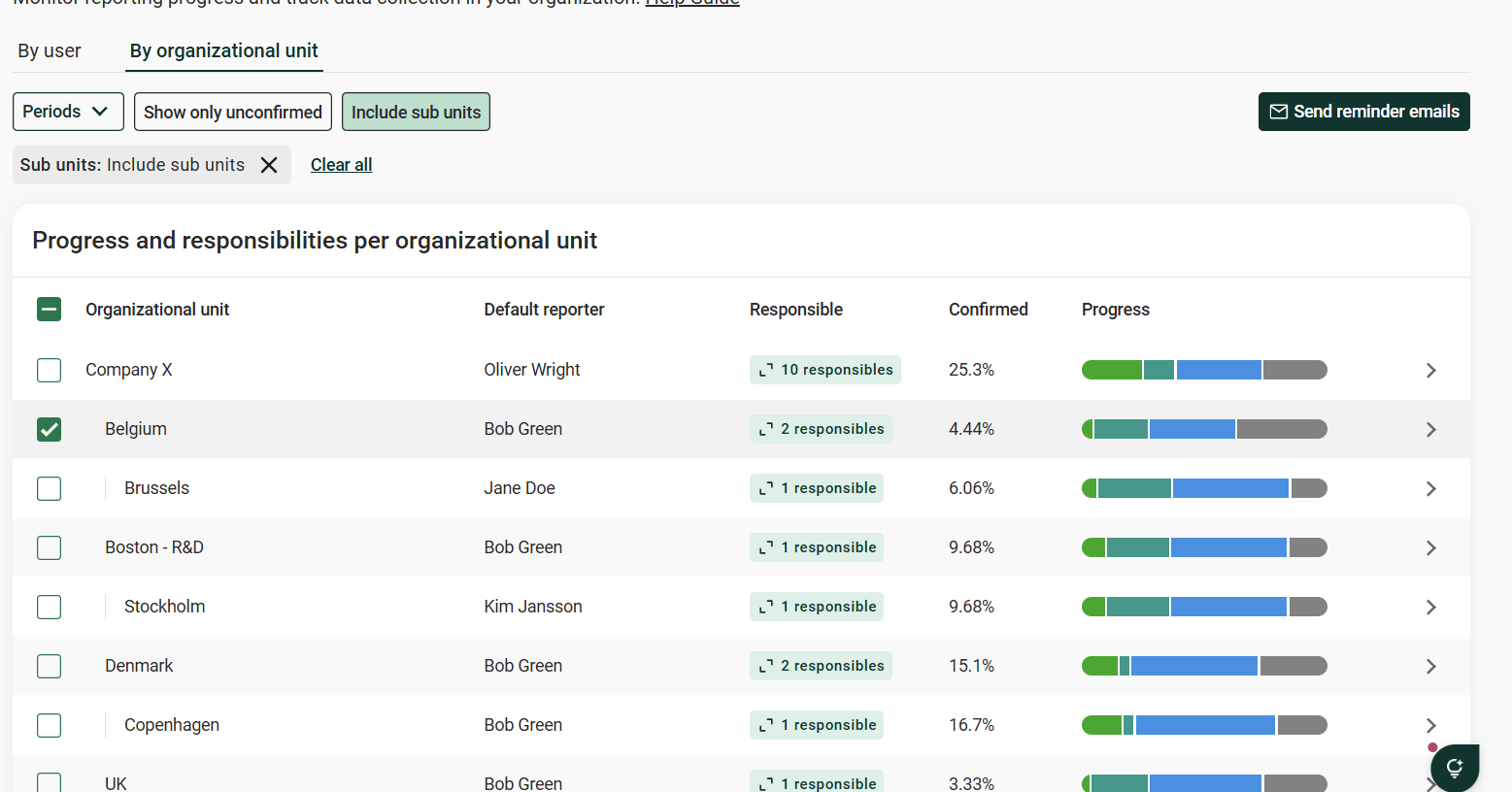
The "By organizational unit" tab shows progress per unit in your organization tree, so you can see which business units in the organization are on track.
Each row shows:
- Default reporter. The user set as default reporter on the org unit in Company setup > "Organization" view.
- Responsible. Number of users responsible for at least one registration in the unit. Click it to see who they are, their individual progress, and send reminders to them.
- Confirmed and Progress. Same as in the "By user" tab, but for the unit's registrations.
By default, a unit only counts registrations placed directly on it. Turn on "Include sub units" to also count registrations in every unit below it in the organization tree.
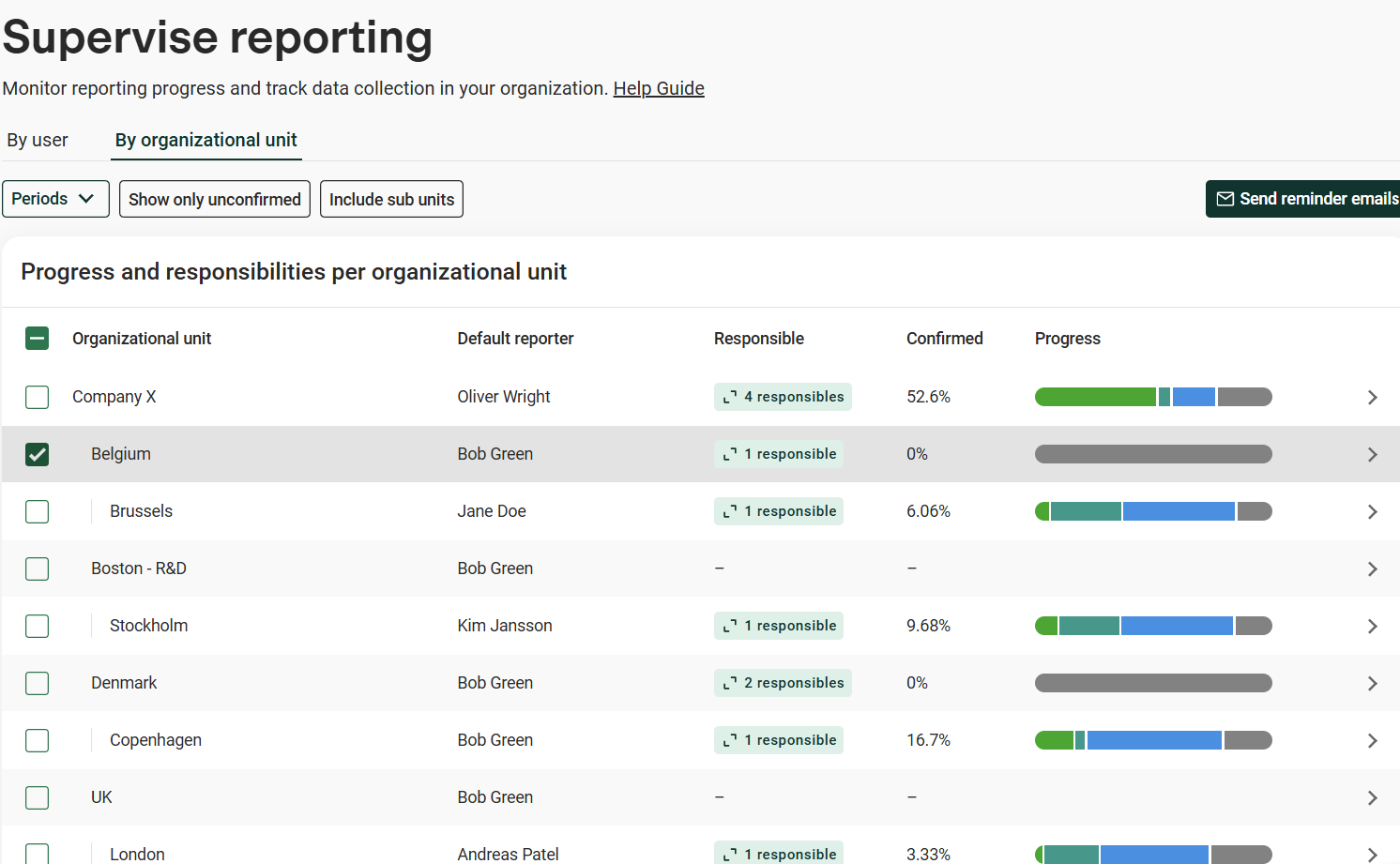
Remind the default reporter of a org. unit
Select the units and click "Send reminder emails". The reminder goes to each unit's default reporter. Units without a default reporter cannot be selected.
Remind everyone responsible in a org.unit
Click the cell under "Responsible" (for example "4 responsibles"). The dialog lists every user with at least one registration in the unit and their progress. Select who to remind and click "Send reminder emails".
In the example below, Company X has the default reporter Oliver Wright plus three other users responsible for registrations in the unit.
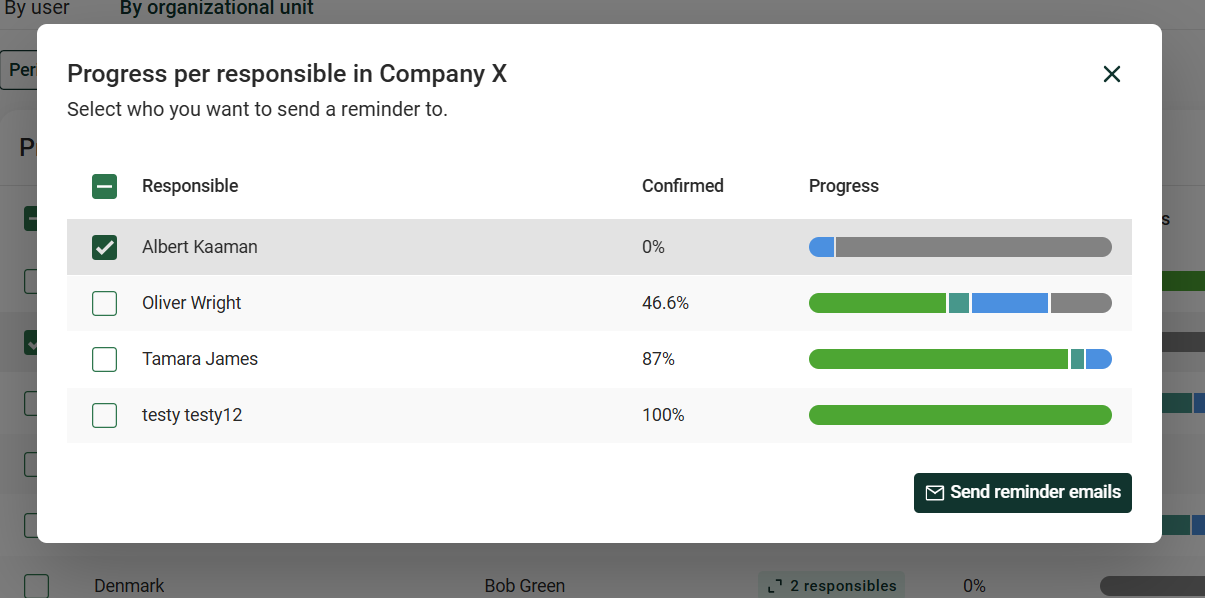
With "Include sub units" turned on, registrations in all units below Company X count too, so the number of responsibles goes from 4 to 10.
Was this article helpful?
That’s Great!
Thank you for your feedback
Sorry! We couldn't be helpful
Thank you for your feedback
Feedback sent
We appreciate your effort and will try to fix the article