An instructions / welcome message can be displayed when users first open Data reporting. Edit this text to share relevant information with users. E.g important dates or links to company specific guidelines.

Example welcome page text
To edit the text
1. Click the profile initials in the top right, then "Settings".
2. Click on "Registrations" in the Settings menu, then scroll down to "Reporting instructions".
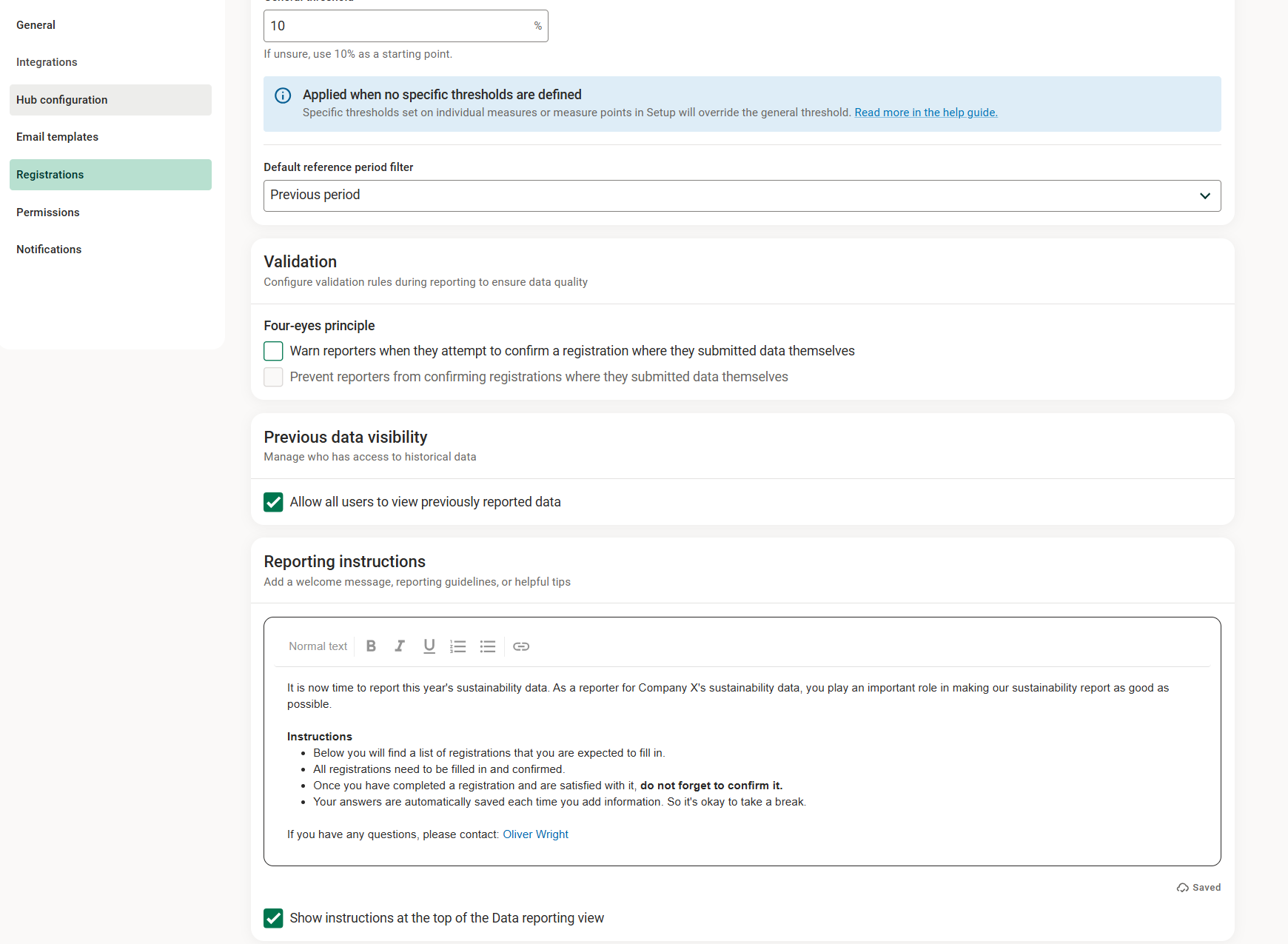
By default and standard message is shown. Replace this with information suitable for your organization and reporting.
Add formatting to the instructions
Available formatting are:
- text size and headings
- bold, italic, underlined text
- lists (numbered or bullet lists)
- links, e.g. links to documents or web pages.
Images can be added by pasting their URL, such as "www.examplecompany.com/companylogo.png".
Hiding the message
Uncheck the setting "Show instructions..." under the message field.
Transition from HTML message to new formatting options Please note that previously we have used a pure HTML editor for this, so if you have had a welcome message before you may see an info message mentioning the new text editor. In most cases, it will look nearly the exact same, but in some cases there may be slight differences in how the message is presented. Your old message will be replaced by the new once you click the Save button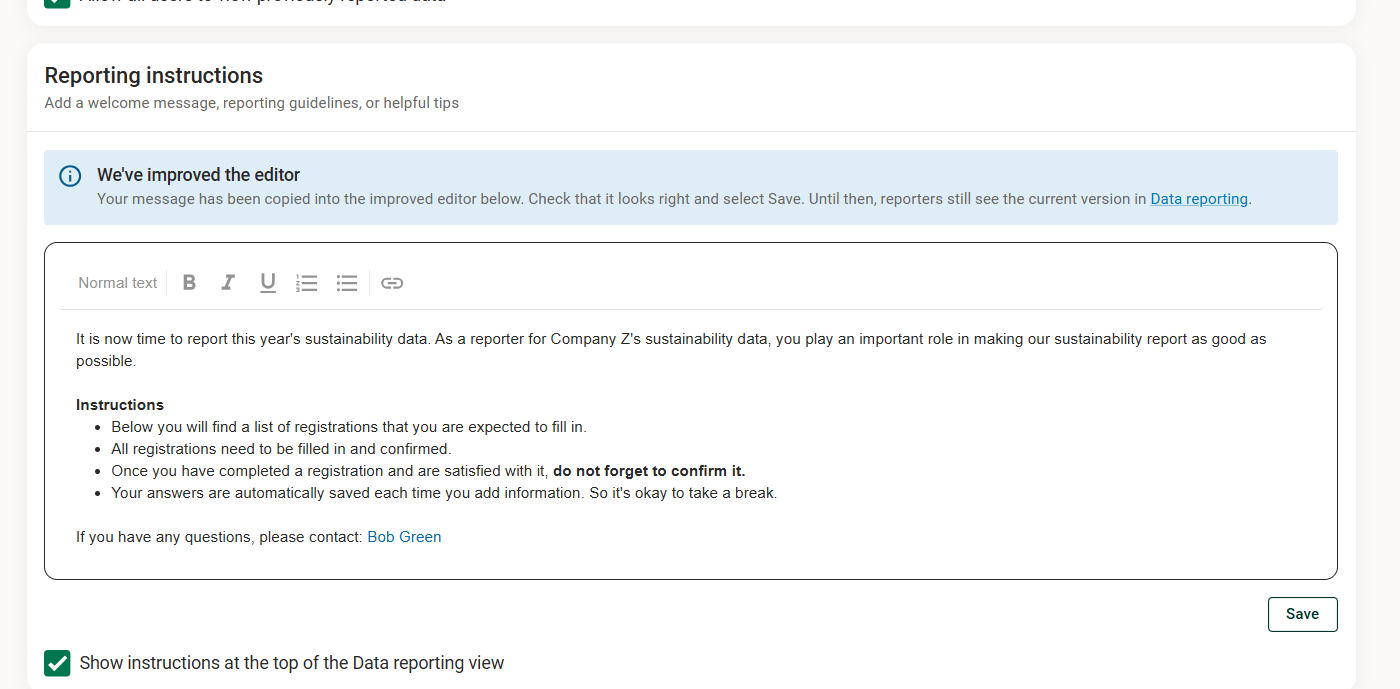
Was this article helpful?
That’s Great!
Thank you for your feedback
Sorry! We couldn't be helpful
Thank you for your feedback
Feedback sent
We appreciate your effort and will try to fix the article