Unimicro integration guide
Set up the Unimicro integration to send transaction data to Position Green. Note that several systems use the Unimicro base system. Use this guide if your company use any of the following ERP systems:
- Unimicro
- Unimicro SMB
- Eika Regnskap
- Azets Complete
- DNB Regnskap
- Sparebank1 Regnskap - SR-Bank
- Sparebank1 Regnskap - Østlandet
- Sparebank1 Regnskap - Sørøst
- Sparebank1 Regnskap - Nord-Norge
- Sparebank1 Regnskap - Hallingdal Valdres
- Sparebank1 Regnskap - NordMøre
- Sparebank1 Regnskap - Østfold Akershus
- Sparebank1 Regnskap - Ringerike Hadeland
- Sparebank1 Regnskap - Gudbrandsdal
- Sparebank1 Regnskap - Søre Sunnmøre
- Sparebank1 Regnskap - Lom og Sjåk
Install the Position Green application
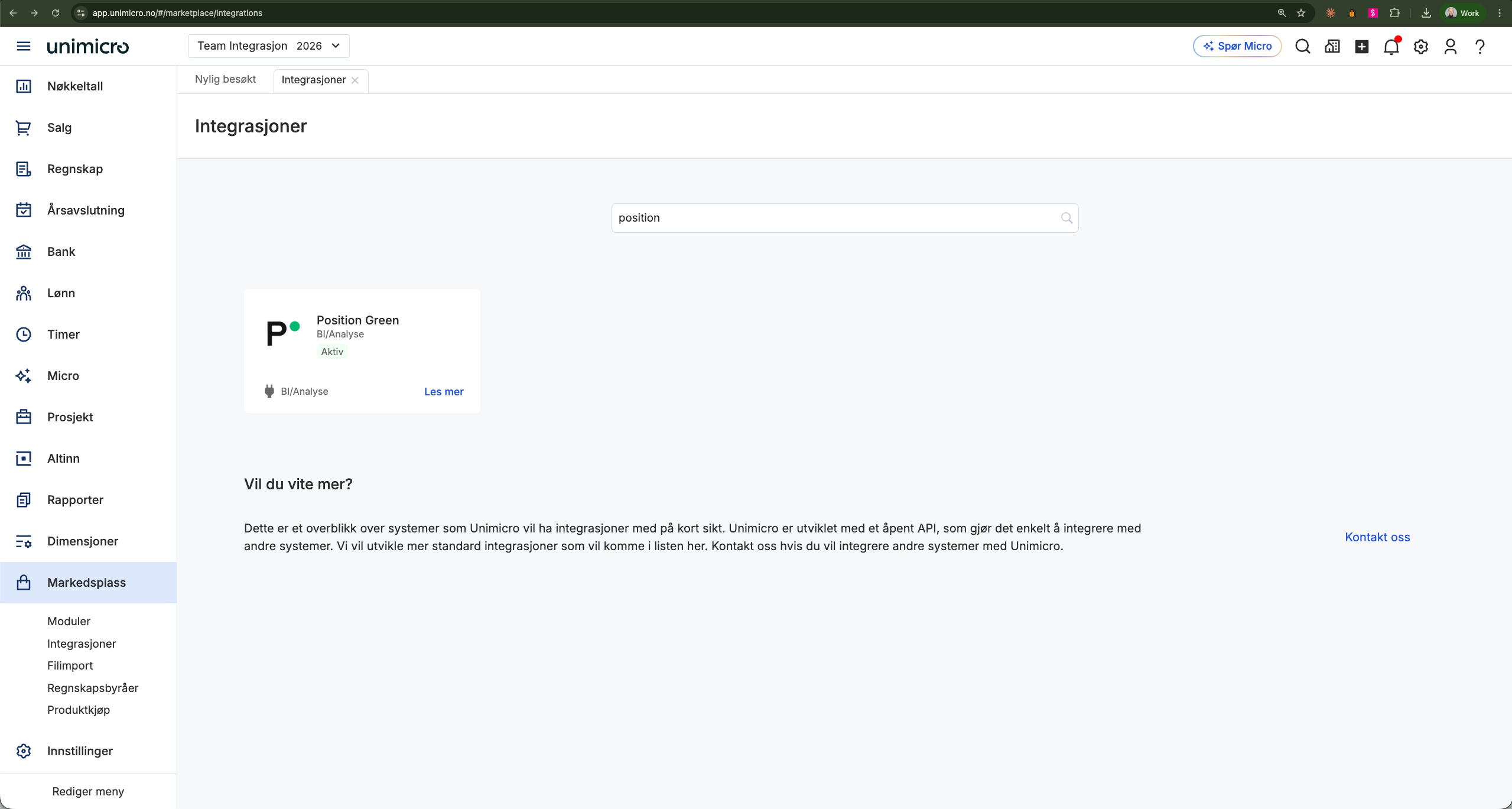
- Log in to the Unimicro account and navigate to Markedsplass → Integrasjoner.
- In Søk, type "Position Green".
- Click "Les Mer" to view additional information about the application.
- Click "Aktiver integrasjon" to activate the Position Green application and enable access to the required accounting information.
- Verify the installation under Markedsplass → Integrasjoner, where Position Green should be listed as Aktiv.
Retrieve the API integration token from Unimicro
- Access Systeminformasjon in Unimicro. If Systeminformasjon is not visible, administrator privileges may be missing. Contact the administrator.
- Copy the value titled Selskapsidentifikator. This is the API integration token.
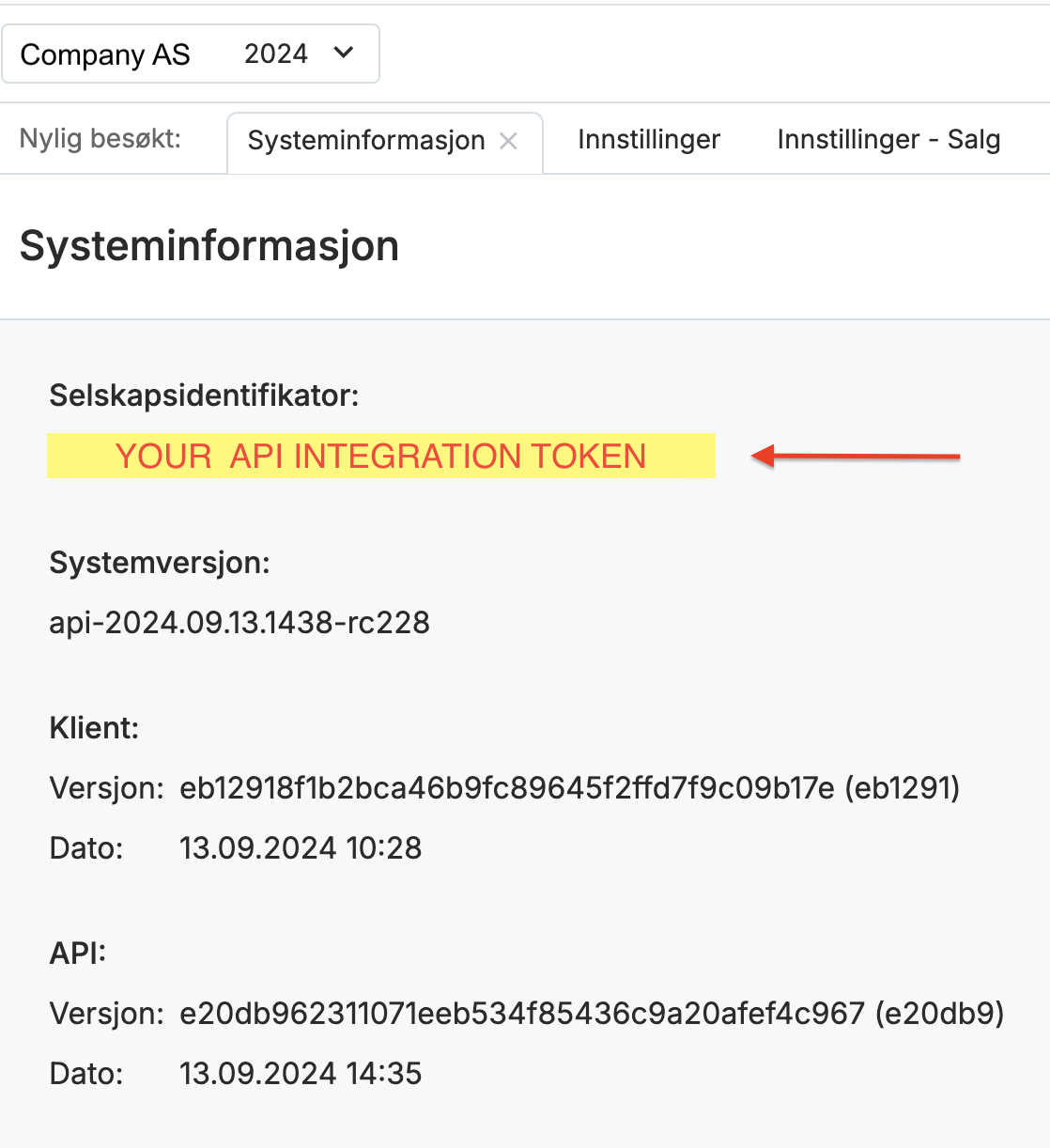
If the API token cannot be located, send an email to support with the company name. The integration token will be returned securely.
Set up the connection in Position Green
- Navigate to Data in the left side menu.
- Go to the Integrations tab.
- Click "Add integration", find Unimicro and click "Set up integration".
- Paste the API integration token from the previous step into Company key.
- Select the platform used to access Unimicro from the dropdown menu. Verify the platform using the login URL.
- Unimicro:
https://app.unimicro.no/ - Unimicro SMB:
https://smb.unimicro.no/ - Eika Regnskap:
https://system.eikaregnskap.no/ - Azets Complete:
https://complete.azets.no/ - DNB Regnskap:
https://dnbregnskap.dnb.no/ - Sparebank 1 Regnskap (SR-Bank):
https://regnskap.sr-bank.no/ - Sparebank 1 Regnskap (Østlandet):
https://regnskap.sb1ostlandet.no/ - Sparebank 1 Regnskap (SørØst):
https://regnskap.sb1sorost.no/ - Sparebank 1 Regnskap (Nord-Norge):
https://regnskap.snn.no/ - Sparebank 1 Regnskap (Hallingdal Valdres):
https://regnskap.sb1.no/ - Sparebank 1 Regnskap (NordMøre):
https://regnskap.bank.no/ - Sparebank 1 Regnskap (Østfold Akershus):
https://regnskap.sparebank1oa.no/ - Sparebank 1 Regnskap (Ringerike Hadeland):
https://regnskap.rhbank.no/ - Sparebank 1 Regnskap (Gudbrandsdal):
https://regnskap.s1g.no/ - Sparebank 1 Regnskap (Søre Sunnmøre):
https://regnskap.sparebanken.no/ - Sparebank 1 Regnskap (Lom og Skjåk):
https://regnskap.sb1ls.no
- Unimicro:
- Click "Authenticate and Activate Integration".
- Confirm that a confirmation message displays and that the status updates in the active integrations list.
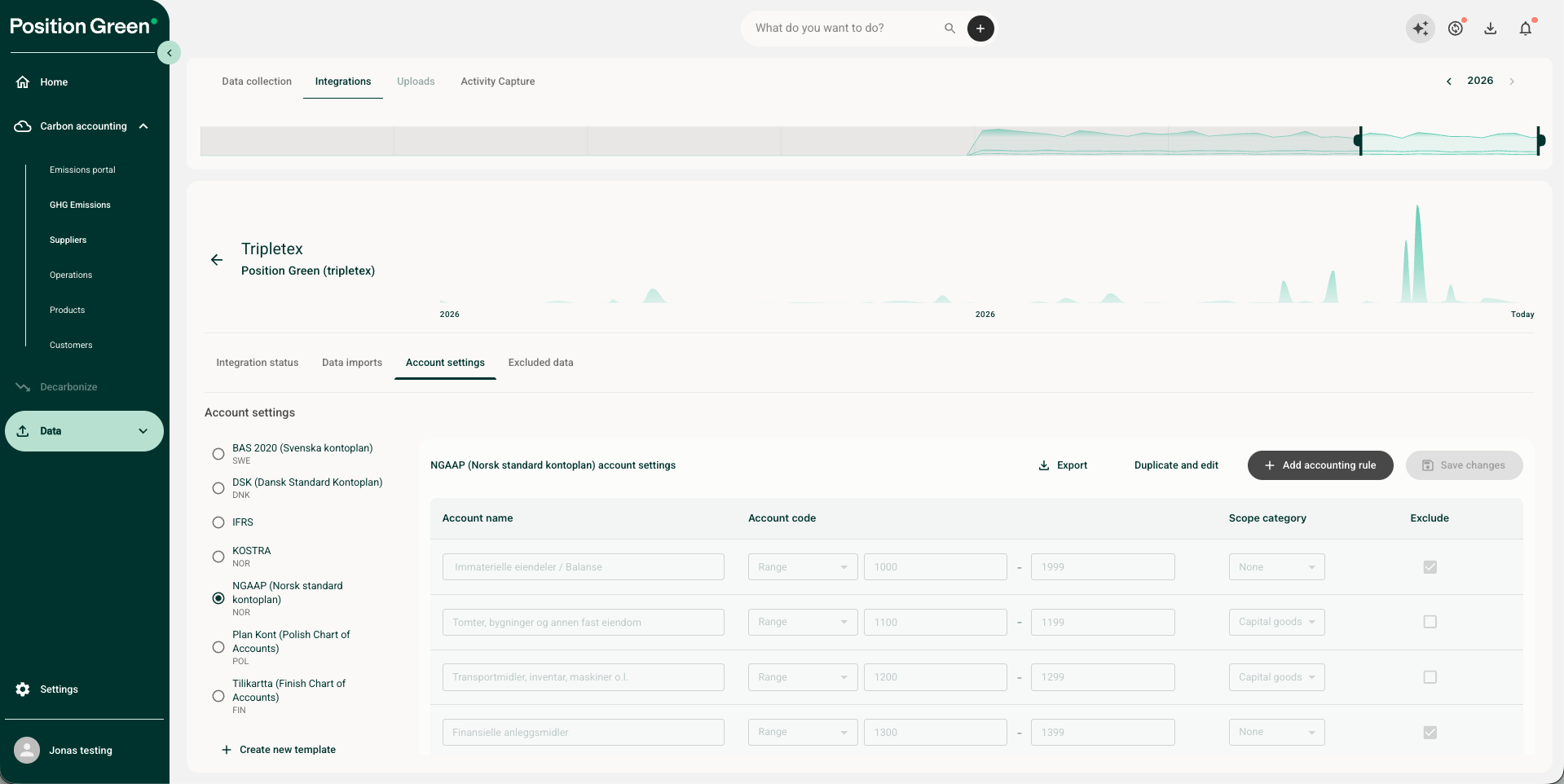
Note that there are a preselected set of financial General Ledger (GL) accounts for each integration depending on your country and accounting standard. You can see and change that under "Account settings" under the integration setup. More information about account settings here.
Fetching Data to Position Green
- The first time you set up the integration, you can trigger a historical upload for a custom period, e.g. for the whole last year or for only last month by clicking the "Sync now" button or the sync icon
- Check the review and reconciliation guide to reconcile your data
- Congratulations! You are integrated.
Contact Position Green support
Contact the Position Green onboarding representative for guidance or troubleshooting support.
Was this article helpful?
That’s Great!
Thank you for your feedback
Sorry! We couldn't be helpful
Thank you for your feedback
Feedback sent
We appreciate your effort and will try to fix the article