Below is a step-by-step guide on how to set up the integration of your transaction data with Position Green if you are using RamBase Cloud ERP as your system provider.
Step 1: Retrieve API Credentials from RamBase
- Send an email to your RamBase account manager or support representative to request a Client ID and Client Secret.
- In your request, specify that you are integrating with Position Green so that the API connection can be whitelisted for your environment.
- Store the returned credentials securely, as you will need them in the next step.
Step 2: Setup Connection Inside Position Green Application
- Navigate to “Data” in the left side menu.
- Go to the "Integrations" tab.
- Select RamBase and click "Connect".
- Input the Client ID and Client Secret retrieved in Step 1.
- Click “Authenticate and activate integration”.
- A verification check will run. You will see a popup and card status reading “Authenticating credentials”.
- When authentication completes (usually within 30 seconds), the card status will change to "Verified Credentials".
- A confirmation notification will appear in the top right corner.
Step 3: Fetching Data to Position Green
- The first time you set up the integration, you can trigger a historical upload for a custom period, e.g. for the whole last year or for only last month by clicking the "Sync now" button or the sync icon
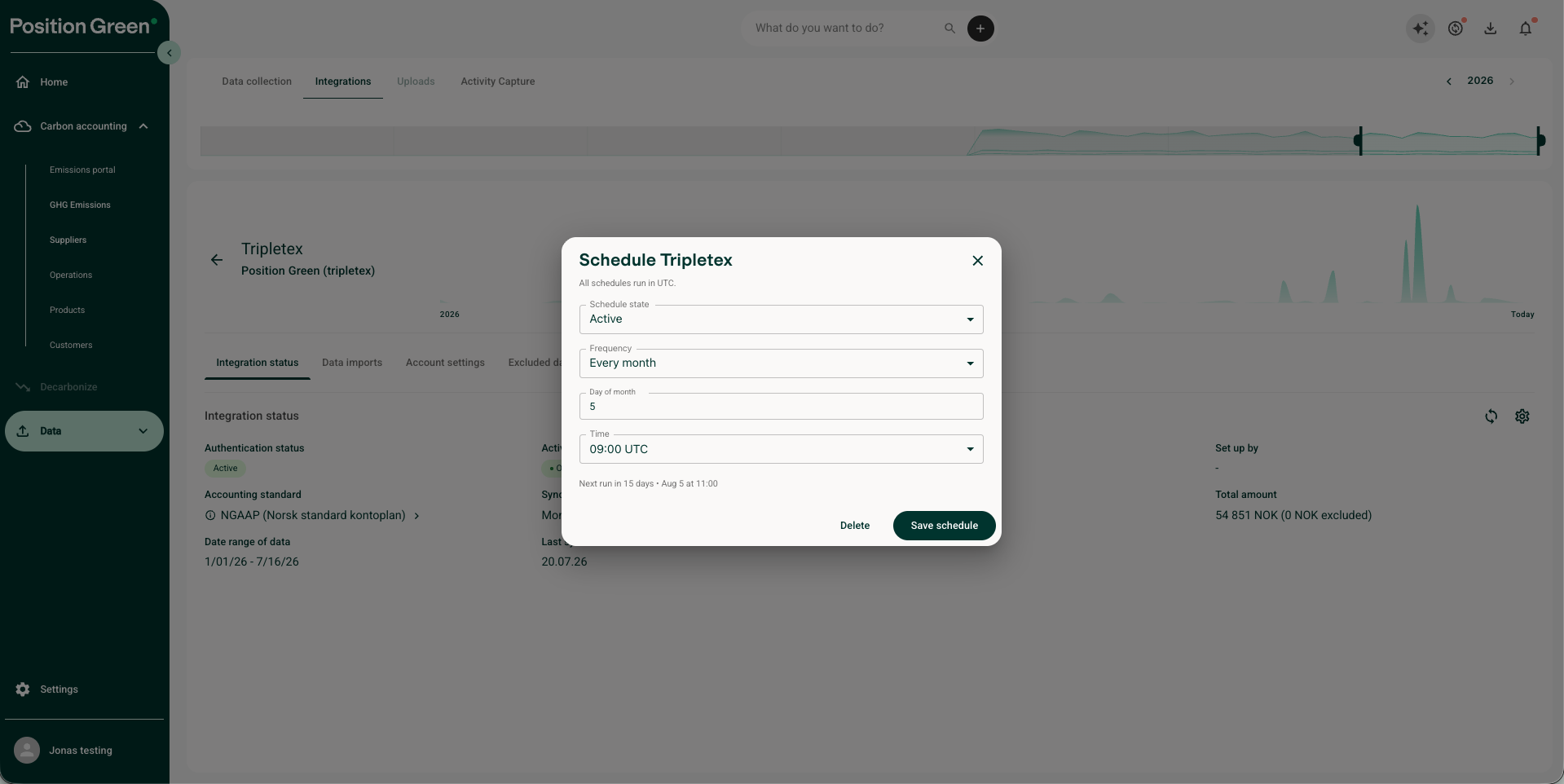
- Note that you can also set a scheduled integration, e.g. making sure we get data the 5th of every month, under the "Sync frequency" option.
- Congratulations! You are integrated.
Contact Position Green Support
If you run into any issues, contact your Position Green onboarding representative for guidance or troubleshooting support.
Was this article helpful?
That’s Great!
Thank you for your feedback
Sorry! We couldn't be helpful
Thank you for your feedback
Feedback sent
We appreciate your effort and will try to fix the article