Summary
Add calculated columns to a data table to perform basic calculations and generate additional values before exporting the data or using it in integrations. Calculations do not change the original data; they only create a new value in the table.
Applies to
Working with Data tables. For example, to prepare data for export or BI integrations.
How to add a calculation to a data table
Before adding a calculation, make sure the table contains the data columns to reference.
Open the data table to modify.
Add the required data columns to the table.
Click “Add calculation”.
Enter a name for the calculation.
This name will appear as the column header.Enter the formula in the Expression field.
Apply the same aggregation type used in the referenced columns.
Save the table.
The calculation column will appear at the end of the table.
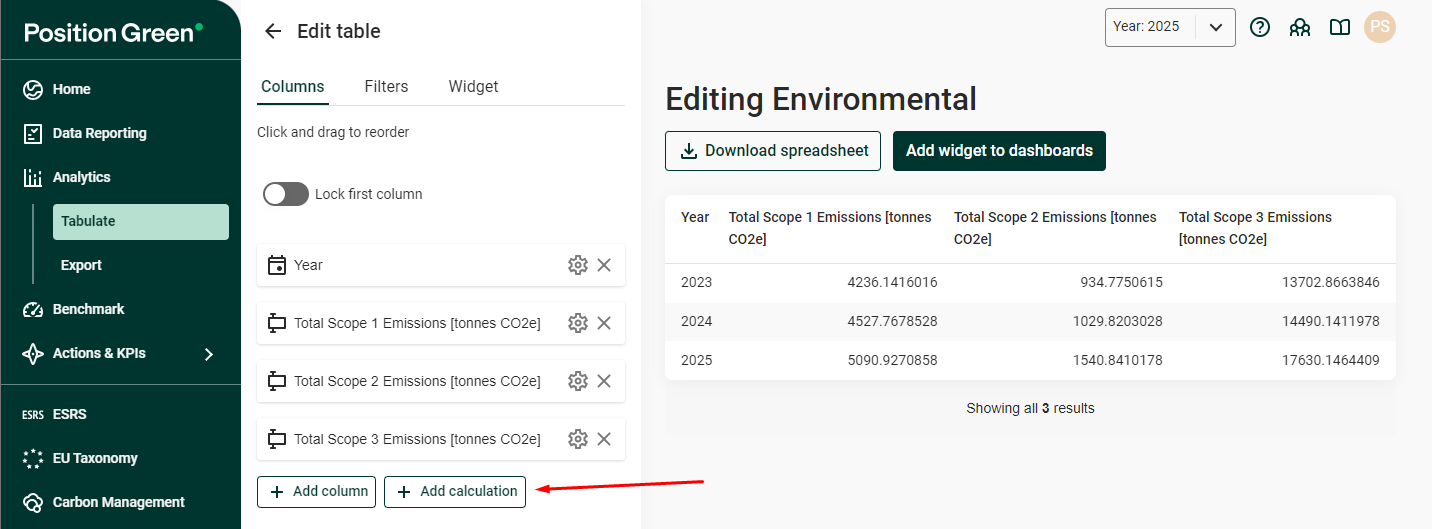
Calculation column at the end of a data table
Referencing columns in calculations
Columns are referenced using letters based on their position in the table.
A = first column
B = second column
C = third column
Example:
If column A contains energy consumption and column B contains production volume, calculate intensity using:
= A / B
Supported operators
The following operators are currently supported. Calculations treat empty values as zero.
Addition
A + B
Subtraction
A - B
Multiplication
A * B
Division
A / B
Parentheses
Parentheses can be used to control the order of operations.
Example:
(A + B) / C
Adding numbers
Numbers can be included directly in expressions.
Example:
(A + B) / 12
Aggregation requirement
The calculation column must use the same aggregation method as the referenced data columns.
Example:
If columns A and B use Sum, the calculation column must also use Sum.
If aggregation differs, the calculation may generate additional rows in the data table.
Current limitations
The Early Access version includes several limitations.
Column order restrictions
After a calculation column is added:
Existing columns cannot be deleted
Existing columns cannot be reordered
To modify the table structure:
Remove the calculation column
Modify the table
Recreate the calculation
Column reference direction
Calculations can only reference columns to the left of the calculation column.
Columns placed after the calculation column cannot be used in the expression.
Related articles
Was this article helpful?
That’s Great!
Thank you for your feedback
Sorry! We couldn't be helpful
Thank you for your feedback
Feedback sent
We appreciate your effort and will try to fix the article