TABLE OF CONTENTS
Overview
The EU Taxonomy module streamlines your regulatory disclosures by guiding your team through compliance screening, financial allocation, and official reporting exports.
The Four-Step Reporting Workflow
Complete your EU Taxonomy reporting in four main steps:
- Minimum Safeguards: Complete an assessment to confirm your organization aligns with international standards on Human Rights, Anti-Corruption, Taxation, and Fair Competition.
- Company Financials: Enter your total Turnover, CapEx, and OpEx to establish your reporting denominators based on EU Taxonomy definitions.
- Activity Assessments: Complete questionnaires for each eligible economic activity to evaluate technical screening criteria alongside activity-specific financials.
- Dashboards & Exports: Review summary views and download Excel reports formatted to official EU specifications.
How the Module Evaluates Your Data
1. Minimum Safeguards
The system evaluates Minimum Safeguard alignment through a step-by-step process:
- Core Questions: Assess baseline alignment with international standards.
- Follow-up Logic: Answering "Yes" confirms alignment. Answering "No" opens follow-up questions to check whether secondary criteria or remedies apply.
2. Activity Assessments & Environmental Objectives
Each activity questionnaire covers four key sections:
- Financial Data: Enter activity-specific Turnover, CapEx, and OpEx.
- Substantial Contribution: Review screening criteria for your selected primary objective.
- Do No Significant Harm (DNSH): Review screening criteria to ensure the activity does not harm remaining environmental objectives.
- Alignment Result: View the final determination of taxonomy compliance for that activity.
Rules for Triggering Environmental Objectives:
When you select an Environmental Objective (e.g., Climate Change Mitigation):
- The system opens Substantial Contribution criteria for that selected objective.
- The system automatically opens Do No Significant Harm (DNSH) criteria for all unselected objectives.
- If an activity contributes to multiple objectives, selecting additional objectives opens their respective criteria and prompts you to pick a Primary Objective for financial totals.
3. Final Alignment Verdict
An activity achieves an Aligned status only when it meets three conditions:
- The activity satisfies Substantial Contribution criteria for at least one selected objective.
- The activity satisfies all triggered Do No Significant Harm (DNSH) criteria.
- The Minimum Safeguard assessment returns an Aligned result.
Analytics & Exports
Review your EU Taxonomy results directly in the platform, or download the official Excel tables required for your reporting.
Reviewing Data in Analytics
The Analytics view provides summary tables and dashboards to help your team monitor progress, review alignment results, and check calculations across Turnover, CapEx, and OpEx.
Exporting Official EU Taxonomy Tables
To generate the exact table formats required for regulatory reporting, export your data directly to Excel:
- Navigate to Analytics in the left menu.
- Select EU Taxonomy under Preset Dashboards.
- Click the Export dropdown menu in the top right corner.
- Select EU Taxonomy from the dropdown options.
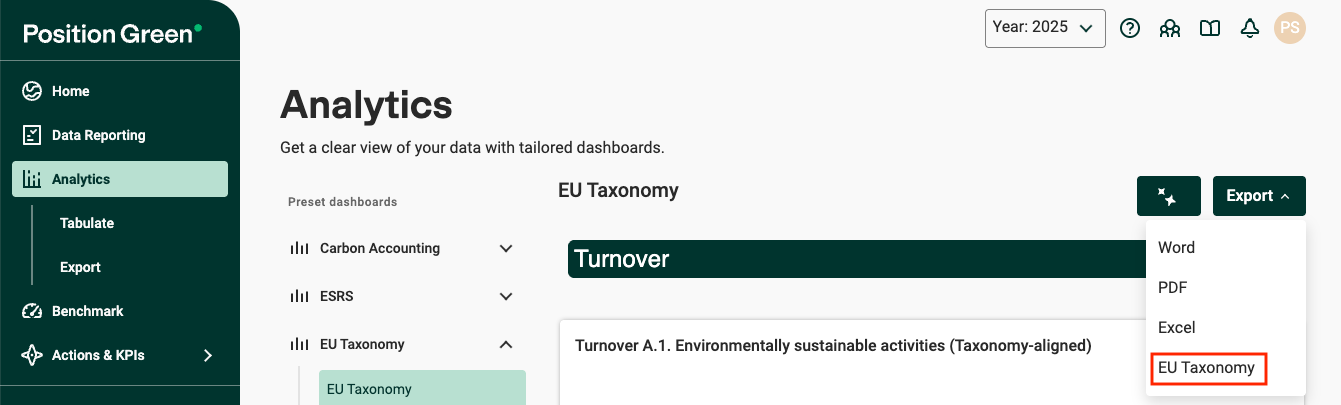
This export generates two standard, regulation-formatted table views in Excel:
- KPI Summary Table: Displays high-level totals for Turnover, CapEx, and OpEx. Allocates financial figures strictly according to each activity's Primary Environmental Objective to prevent double-counting.
- Activity-Level Tables: Displays an itemized, activity-by-activity breakdown showing contributions across all selected Environmental Objectives.
Why percentages may differ between views:
The KPI Summary Table assigns financial amounts strictly to the primary objective, whereas Activity-Level Tables reflect multi-objective contributions. Because of this, individual percentage totals across objectives may vary slightly between the two reports. This structure follows official European Union reporting specifications.
Was this article helpful?
That’s Great!
Thank you for your feedback
Sorry! We couldn't be helpful
Thank you for your feedback
Feedback sent
We appreciate your effort and will try to fix the article