Position Green have two main ways of importing data into the platform using files. Standard import files and custom file import. More information regarding custom file imports below:
Data can be imported into Position Green from the following kinds of files:
- Excel .xlsx
- CSV .csv
- Google Sheets - Ensure the file is "Shared with everyone."
Contact your Position Green team to explore the possibilities of custom file import in adding data directly into measures.To import data, a file must be uploaded. Go to your Data reporting in the left menu, and select File Upload. On that page select File imports.
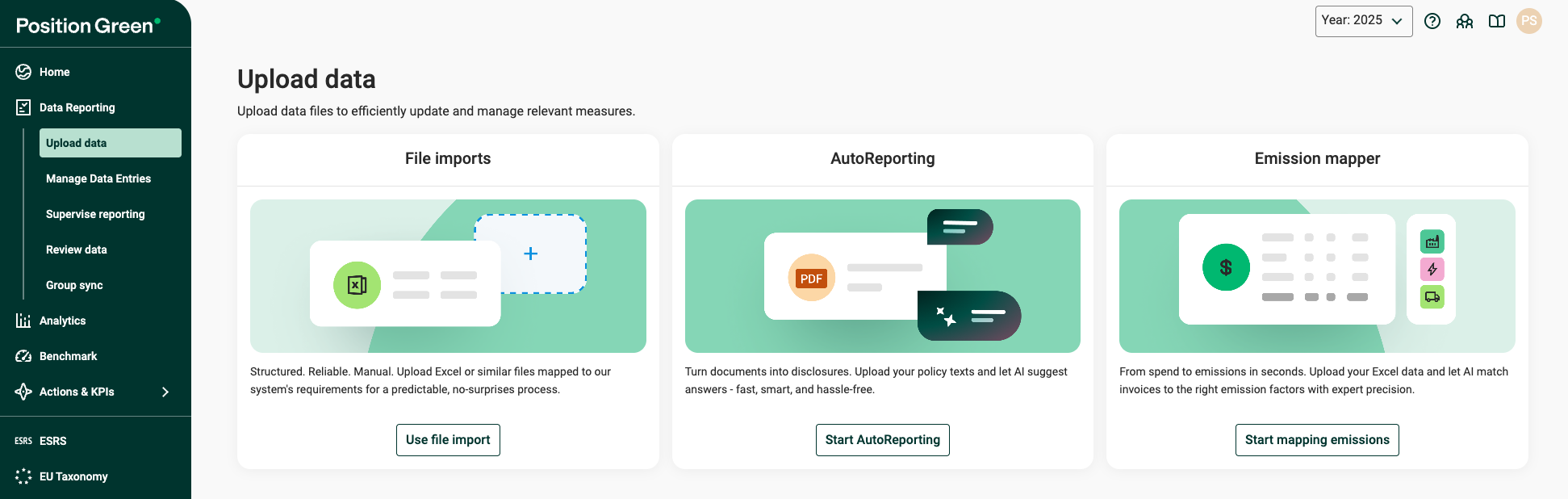
On the File imports page go to the Custom imports tab.
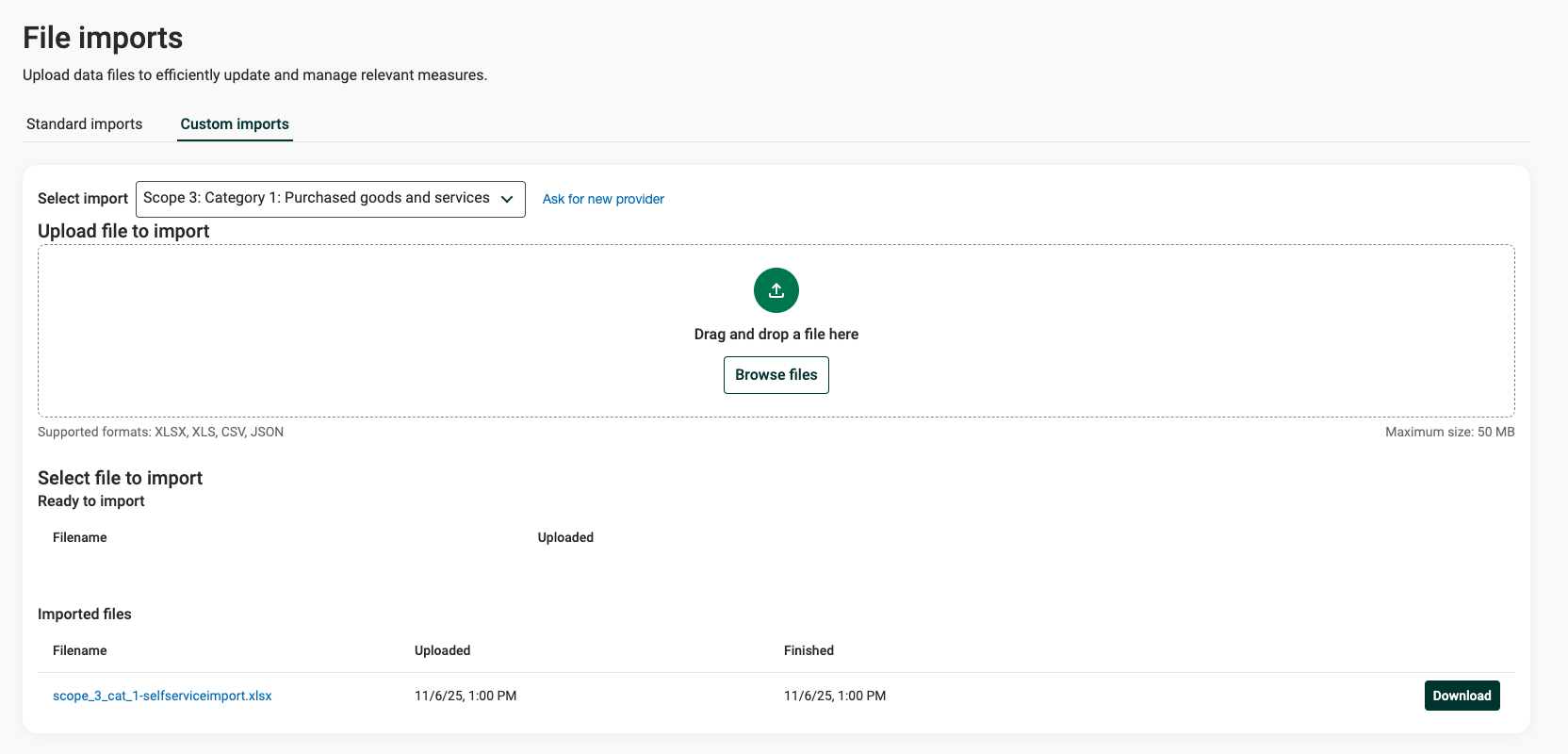
Upload data
Step 1 - In the Select Import dropdown, select which import to use. If there are certain requirements for the file, these will be stated in "Upload file".
Step 2 - Upload a file by dragging the file you wish to import into the designated file area on the screen, or click Browse files area to select the file from the computer. Maximum file size: 50 MB.
Step 3 - The file will now be found in the inbox under Select file to import, and the first table with files that are Ready to import.
Import data

Step 1 - Click the name of the file. This will open a page which shows the data to be imported into the platform. A summary of the data found in the file is shown.
Step 2 - Ensure it is the correct data. If there are any warnings or errors on top of the page, please contact Position Green to understand more.
Step 3 - Finalize the import by pressing ”Import”, the blue button on the top or bottom right of the page.
Step 4 - The data is now imported into the registrations. Go to Data Reporting to see the registrations listed. Ensure to confirm the measures connected to the import when finished.
Traceability
When a file is imported, the file will be moved from the inbox to the Imported Files table at the bottom of the import page. These are retained to allow traceability.
Remember: Files and reiterations must always have the same format.Importing data from files:
- Ensure that there are existing active measure point(s) to store the data in Position Green.
- All versions of the file to import data from must have the same format. This allows the Position Green team to work effectively with the data upload.
- If new information is added to the file relating to a measure or unit, e.g., a new organizational unit in an electricity consumption report. Contact your Customer Success Manager to input the data.
- If you import data to a registration that already has data in it, the registration will be overwritten with the latest imported data.
Important: data is only imported to unconfirmed registrations
Additional settings for file imports:
Some settings can be altered when creating an import, such as:
- Access level: All users have access to custom file imports. Access to custom imports can be limited to certain users and someone with setup access can alter this. Users can only ever upload data into registrations to which they have access.
- Auto-confirmation: When importing data, data may be entered in a large number of registrations. Registrations connected to an import can be auto-confirmed. However, we recommend that you go through the registrations and confirm them manually to ensure the quality of the data.
- Data validation: It is possible to set up basic validations of the data to ensure that essential data in the file is not missing. Validation criteria leads to a warning or an error being generated when invalid data is imported. Contact your Position Green team to set up validation criteria.
You can find more information on how to use the feature here: Import checklist, FAQ & Troubleshooting
Was this article helpful?
That’s Great!
Thank you for your feedback
Sorry! We couldn't be helpful
Thank you for your feedback
Feedback sent
We appreciate your effort and will try to fix the article