TABLE OF CONTENTS
- 1. Preparation
- 2. Start the process
- 3. Collaborator completes entry
- 4. Confirm data
- 5. Controller review
- 6. Higher-level review (optional)
- Alternative Methods
- Auditor access
Follow these steps to apply the four eyes principle in Position Green.
1. Decide how strictly to enforce the principle
Decide at organization level whether reporters should be warned or prevented from confirming data they edited themselves. A user with Setup access sets this under Settings → Registrations → Validation → Four-eyes principle. See Four-eyes principle: Validation settings and confirmation warning for how each setting behaves.
2. Start the process - assign collaborators
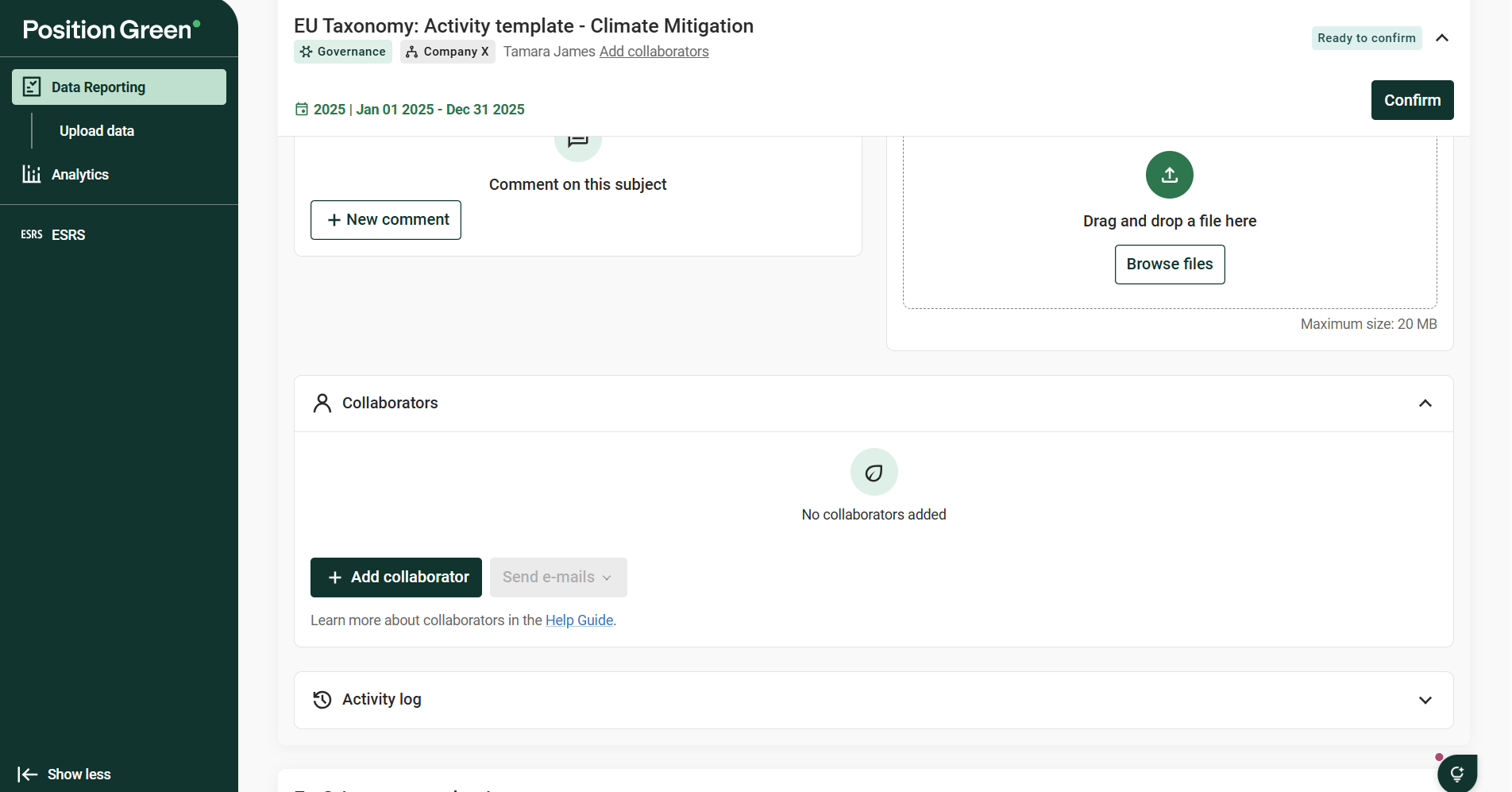
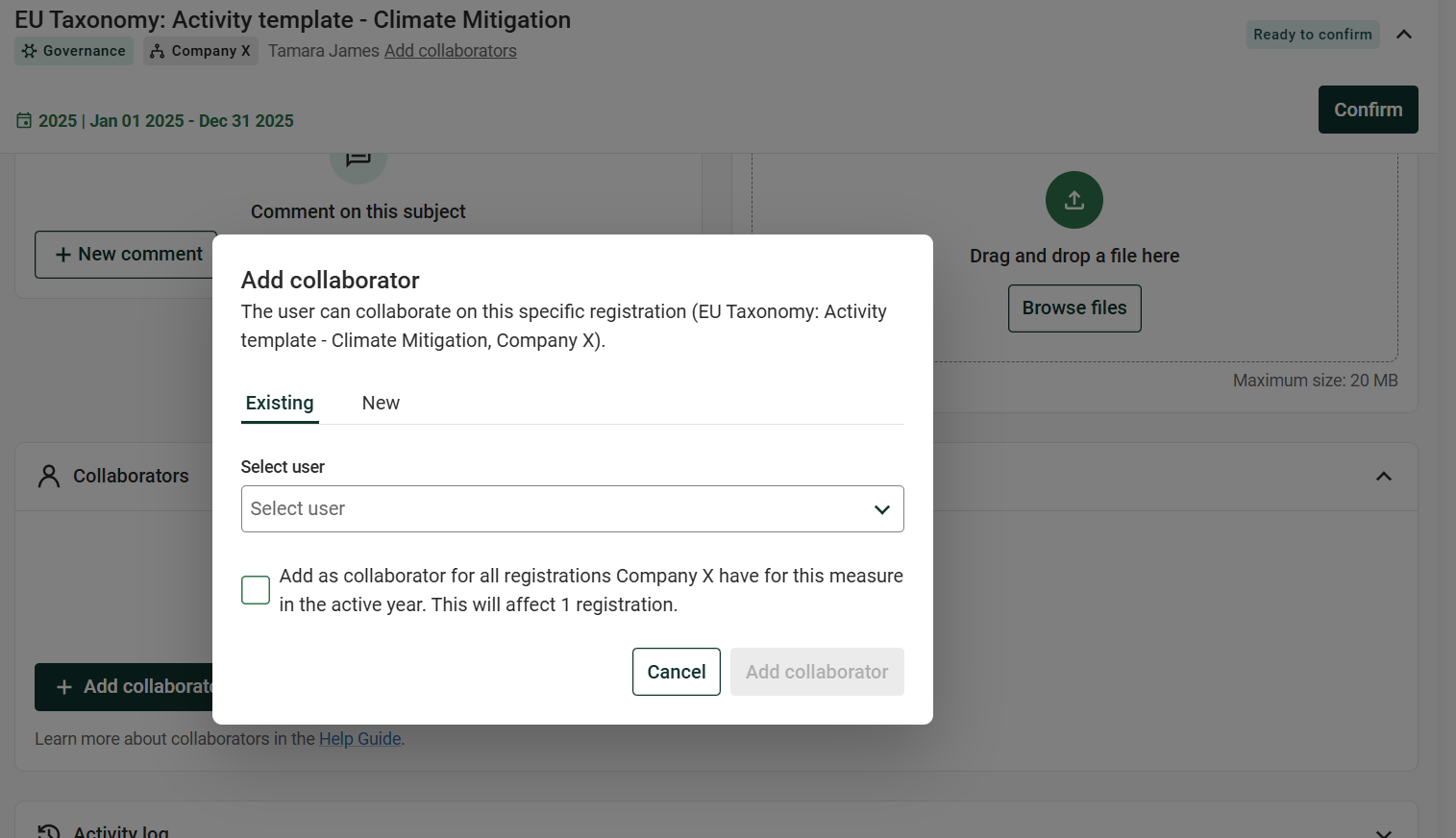
The reporter (or person responsible for the registration invites collaborators to enter data:
- Collaborator management is found at the bottom of a registration. Also linked from the registering heading "Add collaborators"
- Assign one or more Collaborators to add data to the registration.
- Do not confirm the registration at this stage
3. Collaborator completes entry
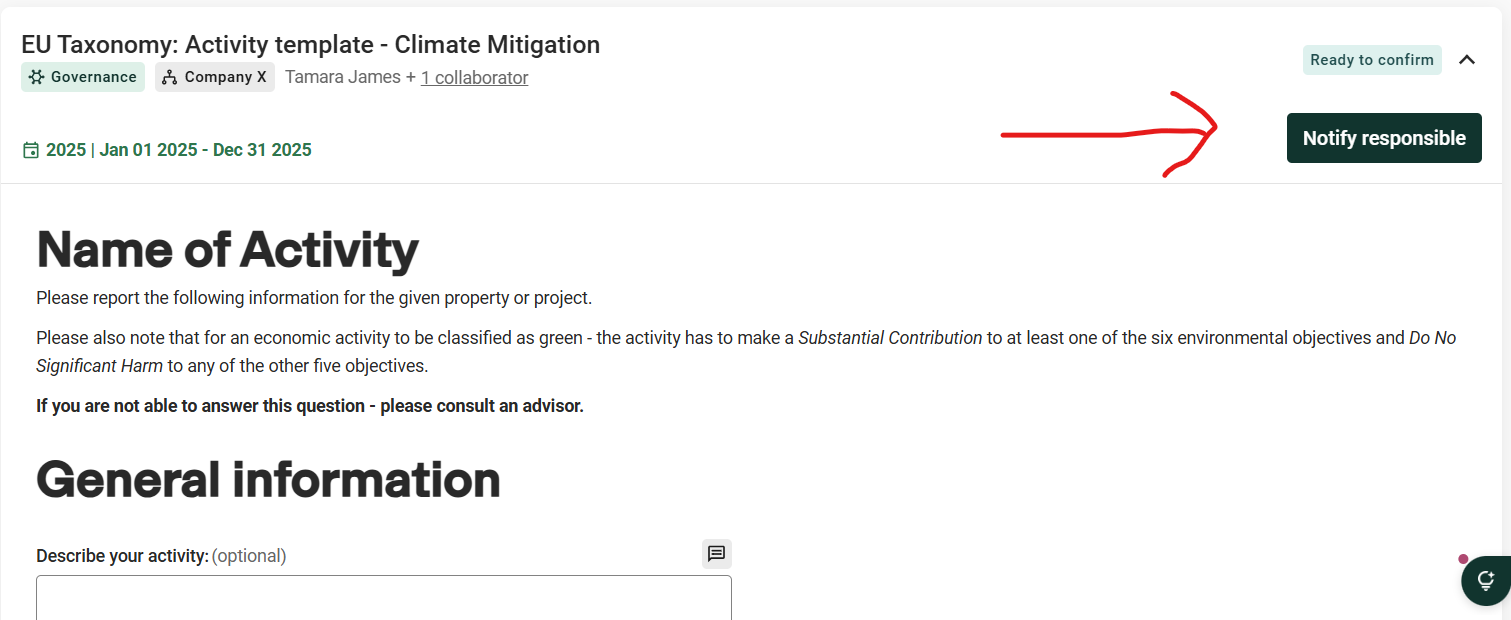
Collaborators add data and click Notify Responsible.
- This triggers an email to the responsible person.
4. Confirm data
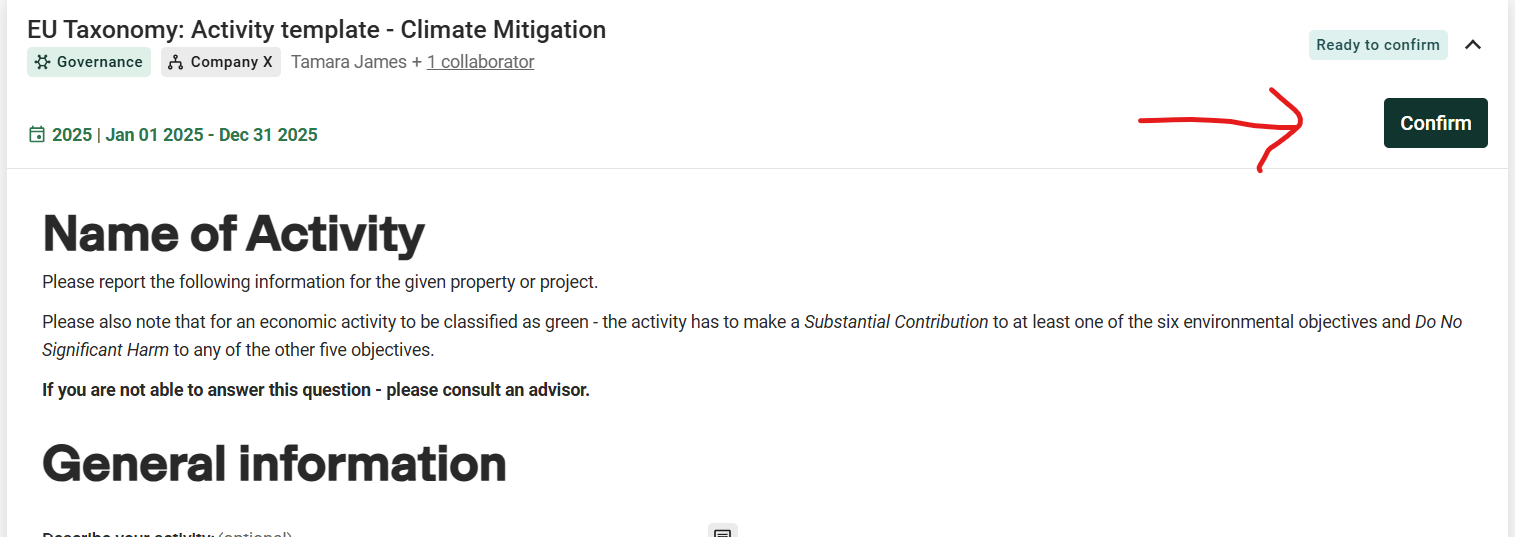
The responsible person/reporter review the data entered by the collaborators and confirms the registration. And becomes the second pair of eyes on the data.
5. Controller review
A controller goes to "Review Data" view , filters on the measure, and checks the data points entered by the org units.
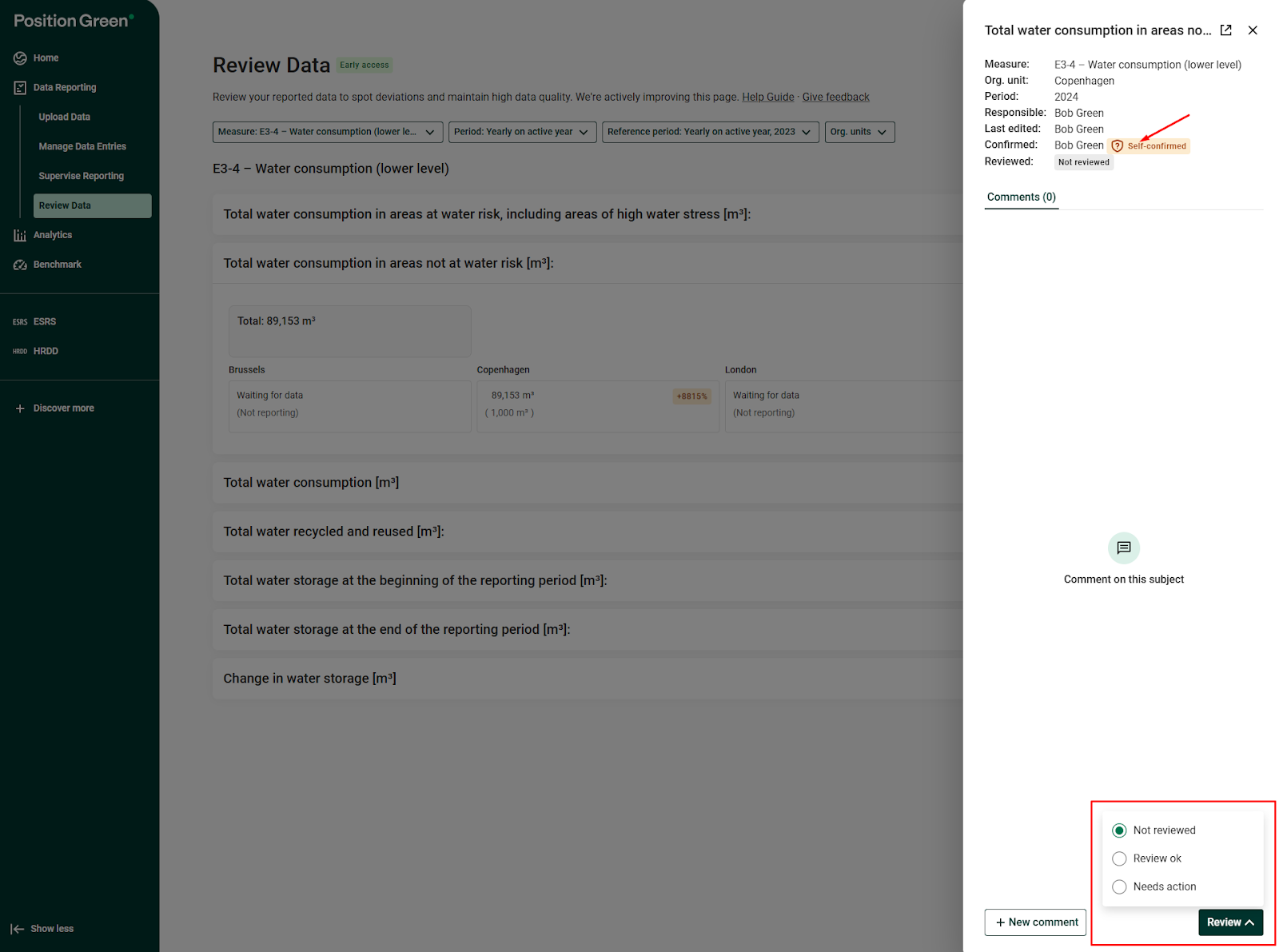
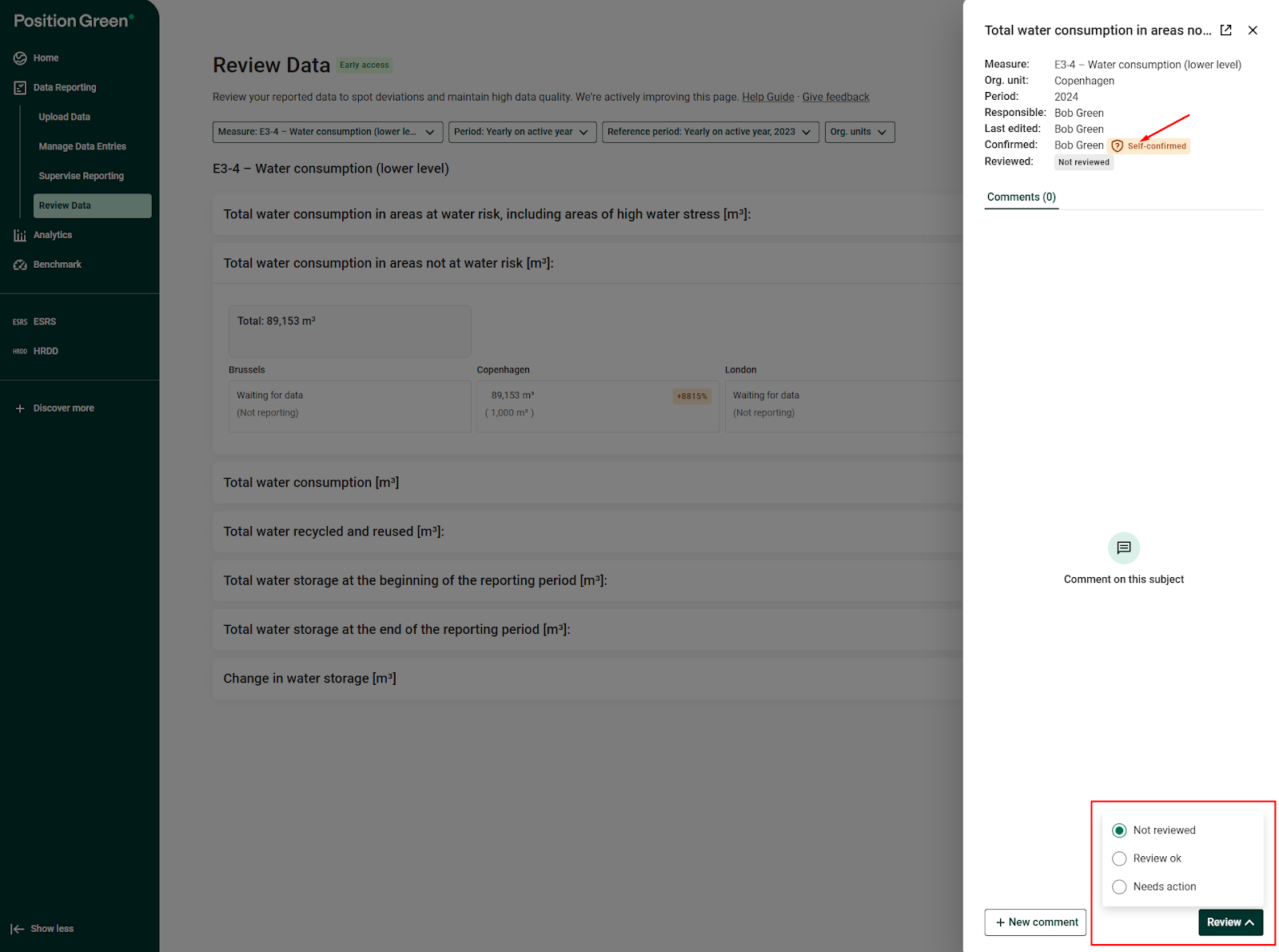
- Self confirmed icon shows quickly which questions were edited by the same person who confirmed the registration (Note: Here the icon only shows if the Four eyes setting is enabled)
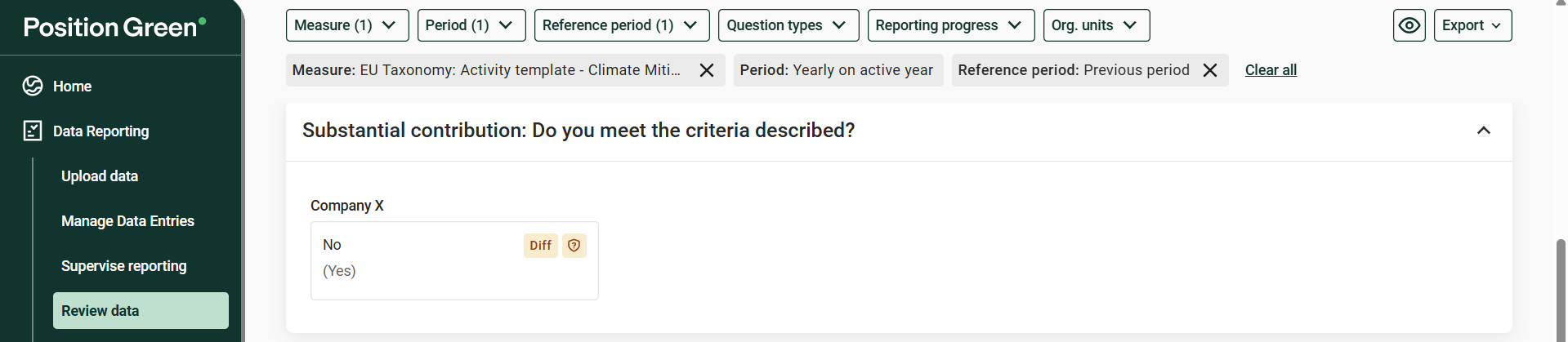 Example of self-confirmed icon on an org.unit
To verify that the 4 eyes principle is applied by an org unit, click the org unit on a question to see details:
- Last Edited shows the name of user who was the last to enter or update the data point.
- Confirmed shows the responsible person who confirmed it.
At this stage if "Last edited" and "Confirmed" are different persons, the four eyes principle is achieved.
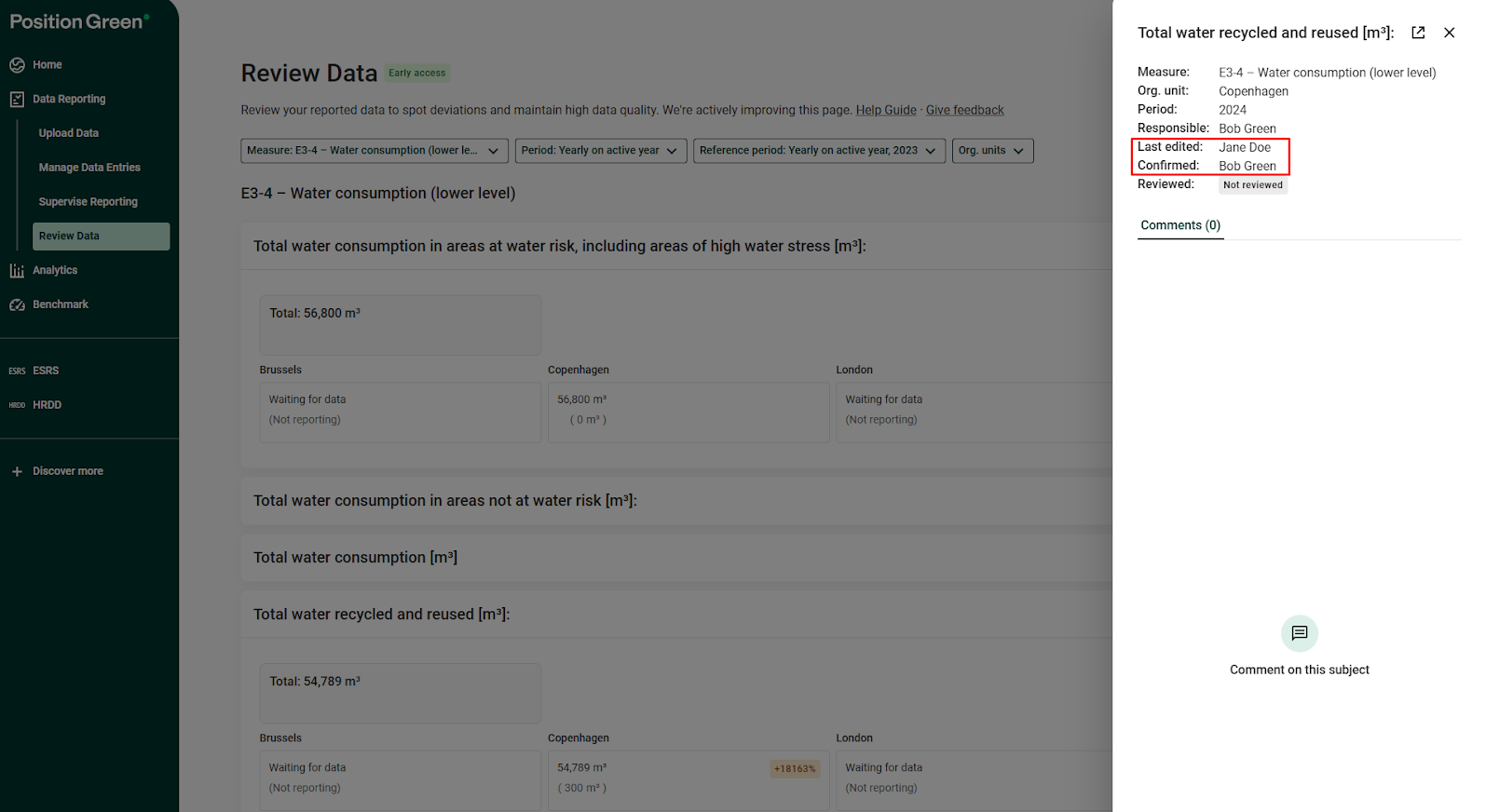
If a user both edited and confirmed a data point, it will be flagged with a self confirmed icon.
6. Higher-level review (optional)
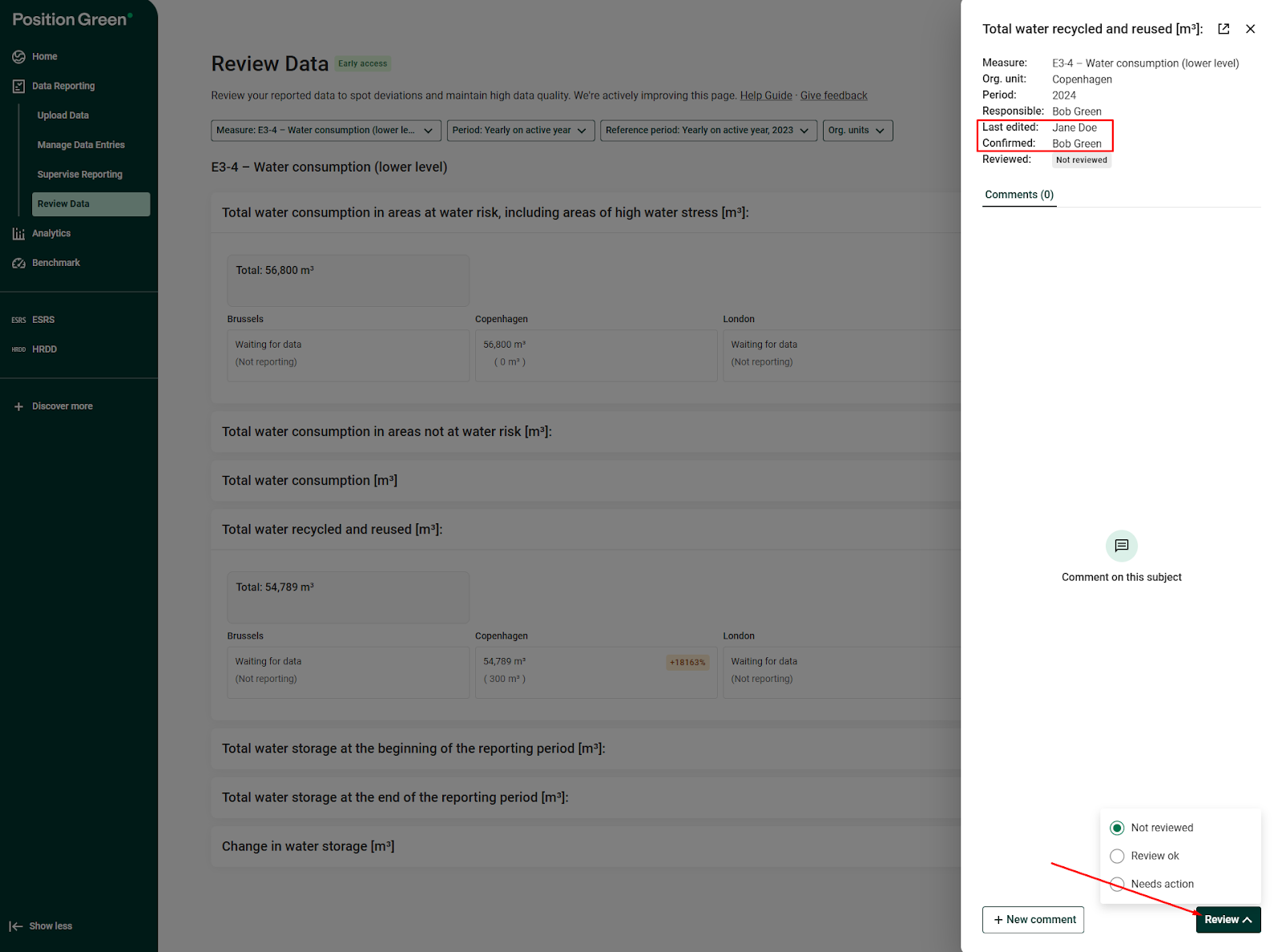
One or more higher-level controllers can use Review status to mark the data as Approved or flag that further actions are required (Needs action). The user who updates review status will shown
Review status can also be set on multiple org units and questions in bulk.
Alternative methods
- The Four Eyes Principle can also be applied by selecting ‘unit reports’ as Reporter to a measure in Company Setup > Measures > Edit measure.
- The user listed under Last Edited is not the same as the one listed under Confirmed.
- The user listed under Last Edited is not the same as the one listed under Confirmed.
- If neither collaborators nor unit reports are used, and Last Edited matches Confirmed, a controller must review the data in Review Data and explicitly mark it as OK.
Auditor access to Review data
Auditors have full access to Review Data and can use the feature to independently verify that the four eyes principle has been correctly applied.
1. Scope of Auditor Rights
Auditors can access all measures across units, regardless of their reporting or confirming roles. They can filter and search by measure, reporting period, or unit to focus on specific data sets.
2. Verification Tasks for Auditors
Auditors can use Review Data to check:
- Whether Last Edited and Confirmed are different users.
- Whether a Controller review or Higher-level review has been completed.
- If data has been explicitly marked as OK or flagged for follow-up.
3. Practical Workflow for Auditors
- Log in and navigate to "Data reporting" > "Review Data".
- Apply filters (e.g. by measure, reporting cycle, or org. units).
- Compare Last Edited vs. Confirmed fields.
- Verify whether the Reviewed step has been performed.
4. Audit Evidence and Reporting
- Auditors can make note of measures where Last Edited equals Confirmed (to ensure an independent review step exists).
- Notes and flags left by controllers provide additional audit evidence.
- If required, auditors can document exceptions and recommend corrective actions.
5. Best Practices for Auditors
- Regularly spot-check high-risk measures or units with frequent data changes.
- Ensure that controllers consistently use the Approved or Needs action functions.
- Review flagged measures first to assess whether proper follow-up has been completed.
Was this article helpful?
That’s Great!
Thank you for your feedback
Sorry! We couldn't be helpful
Thank you for your feedback
Feedback sent
We appreciate your effort and will try to fix the article