This guide connects Microsoft Entra ID to Position Green with OpenID Connect (OIDC). You need permission to create an app registration in your organisation's Entra tenant. Position Green supplies the redirect URL before you begin.
TABLE OF CONTENTS
- Before you start
- 1. Register the application
- 2. Copy the application and tenant IDs
- 3. Create the client secret
- 4. Add the required ID-token claims
- 5. Deliver the values to Position Green
- 6. Test the connection
- Troubleshooting
Before you start
Ask your Position Green contact for:
- the exact Redirect URL
- the email domains that should use this SSO connection
- whether you will enter the client ID and secret directly in Position Green or send them through the agreed secure channel
Choose an existing user to verify sign-in after setup; no separate test account is needed. Their email address must belong to a configured domain, and their Entra profile must include their first name, last name, and email address or user principal name.
1. Register the application
- Open the Microsoft Entra admin center.
- Check that you are in your organisation's Entra directory; switch directories if needed. Then go to Entra ID → App registrations → New registration. Do not create an Enterprise application.
- Enter a recognizable name such as Position Green SSO.
- Under Supported account types, select Single tenant only unless your organisation has explicitly agreed another model with Position Green.
- Under Redirect URI, select Web and paste the complete Redirect URL supplied by Position Green.
- Select Register.
The redirect URI must match exactly, including https://, punctuation, and the final generated path.
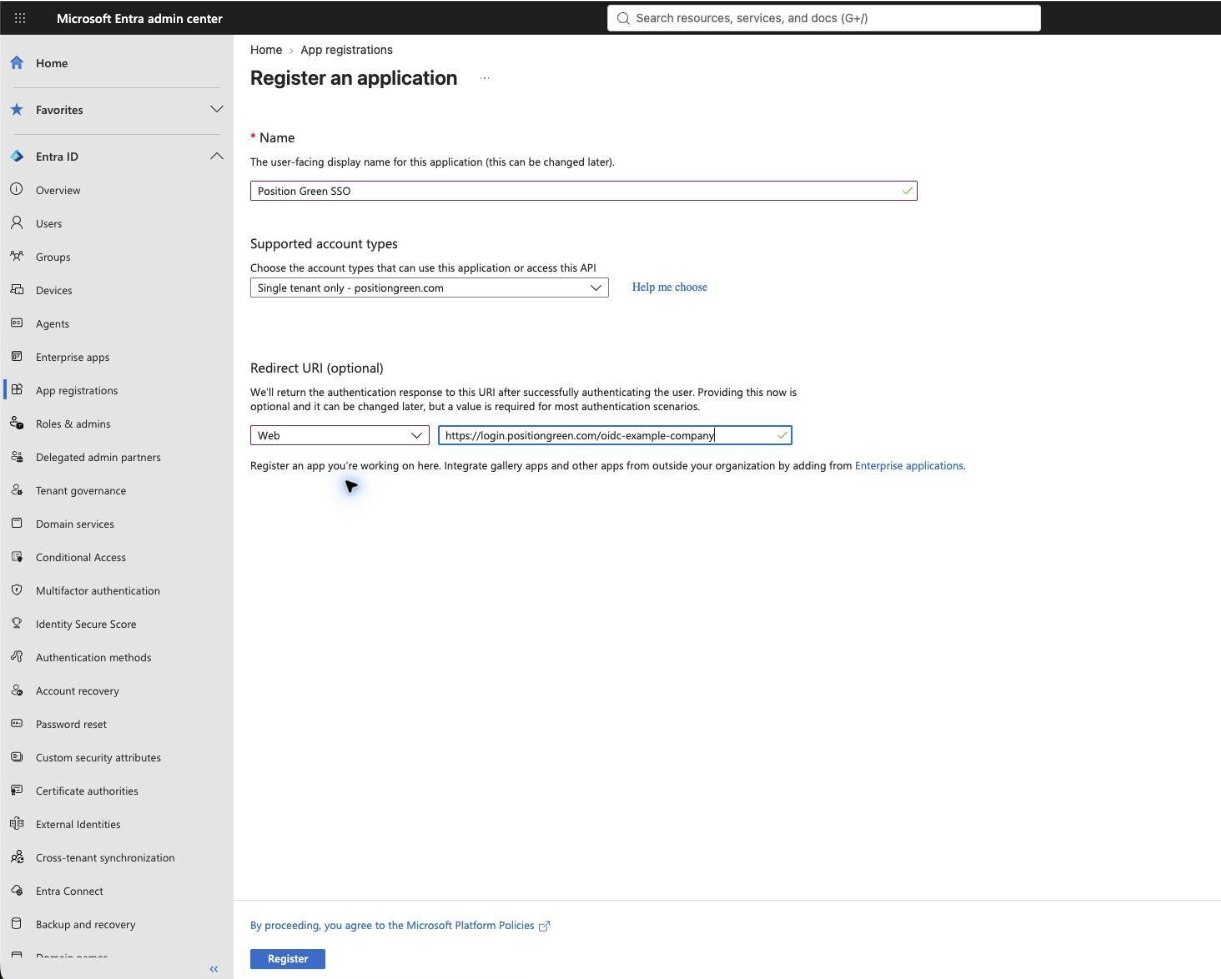
Register the Entra application and Web redirect URI
2. Copy the application and tenant IDs
On the application's Overview page, copy:
- Application (client) ID
- Directory (tenant) ID
Position Green accepts the tenant ID directly; you do not need to find or construct an OpenID Connect metadata URL.
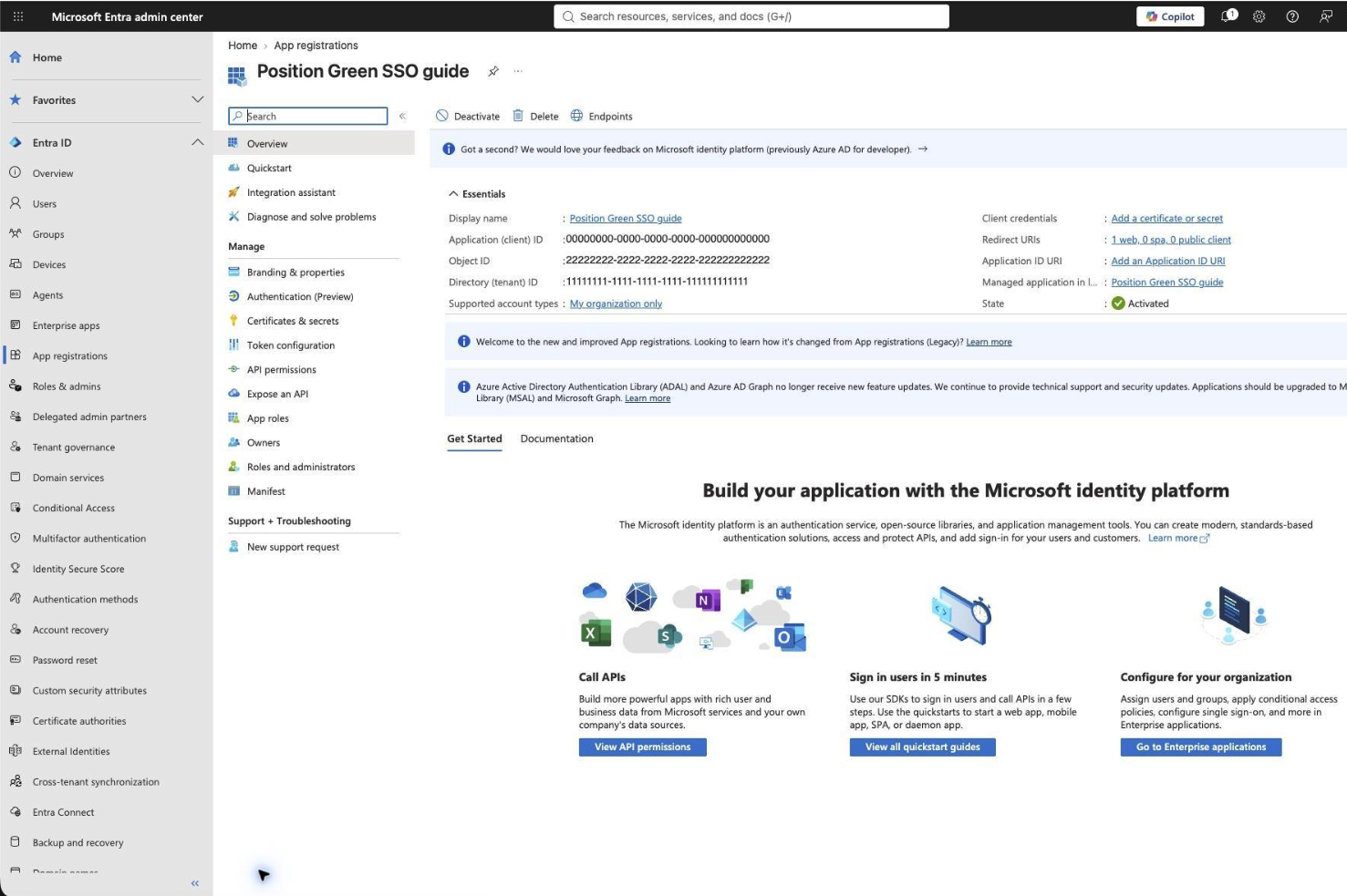 Copy the application and tenant IDs]
3. Create the client secret
- Open Certificates & secrets → Client secrets → New client secret.
- Enter a description such as Position Green SSO.
- Choose 365 days (12 months) when that option is available. If it is not available, follow your organisation's policy and tell your Position Green contact when the secret expires.
- Select Add.
- Copy the new secret from the Value column immediately. Do not copy the Secret ID. The value is shown only once.
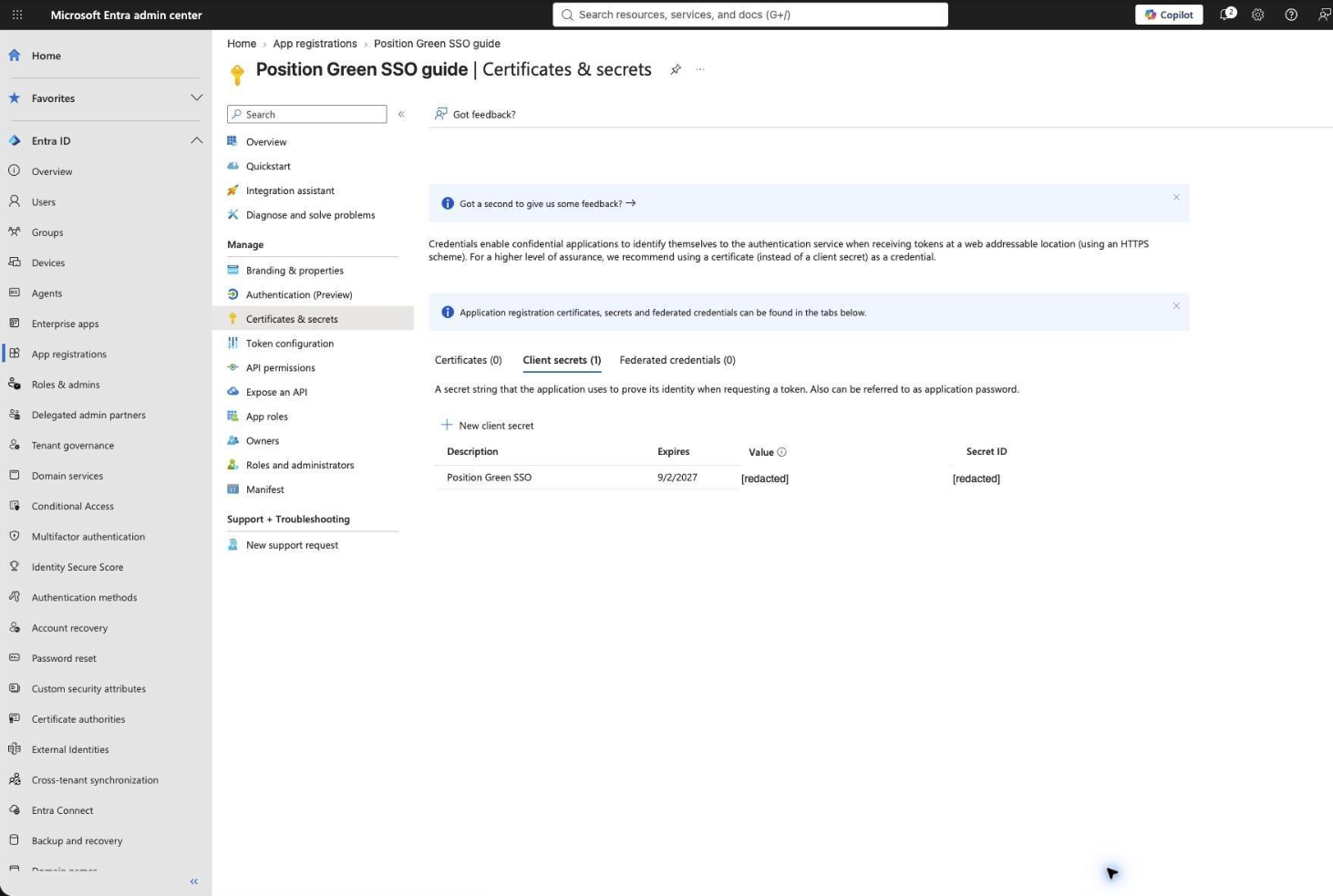 Copy the client secret Value, not the Secret ID]
4. Add the required ID-token claims
Position Green requires separate first-name and last-name claims when it creates or updates a user.
- Open Token configuration → Add optional claim.
- Select ID.
- Select only
given_nameandfamily_name, then select Add. - If Entra asks to enable the Microsoft Graph profile permission, select the checkbox and confirm Add.
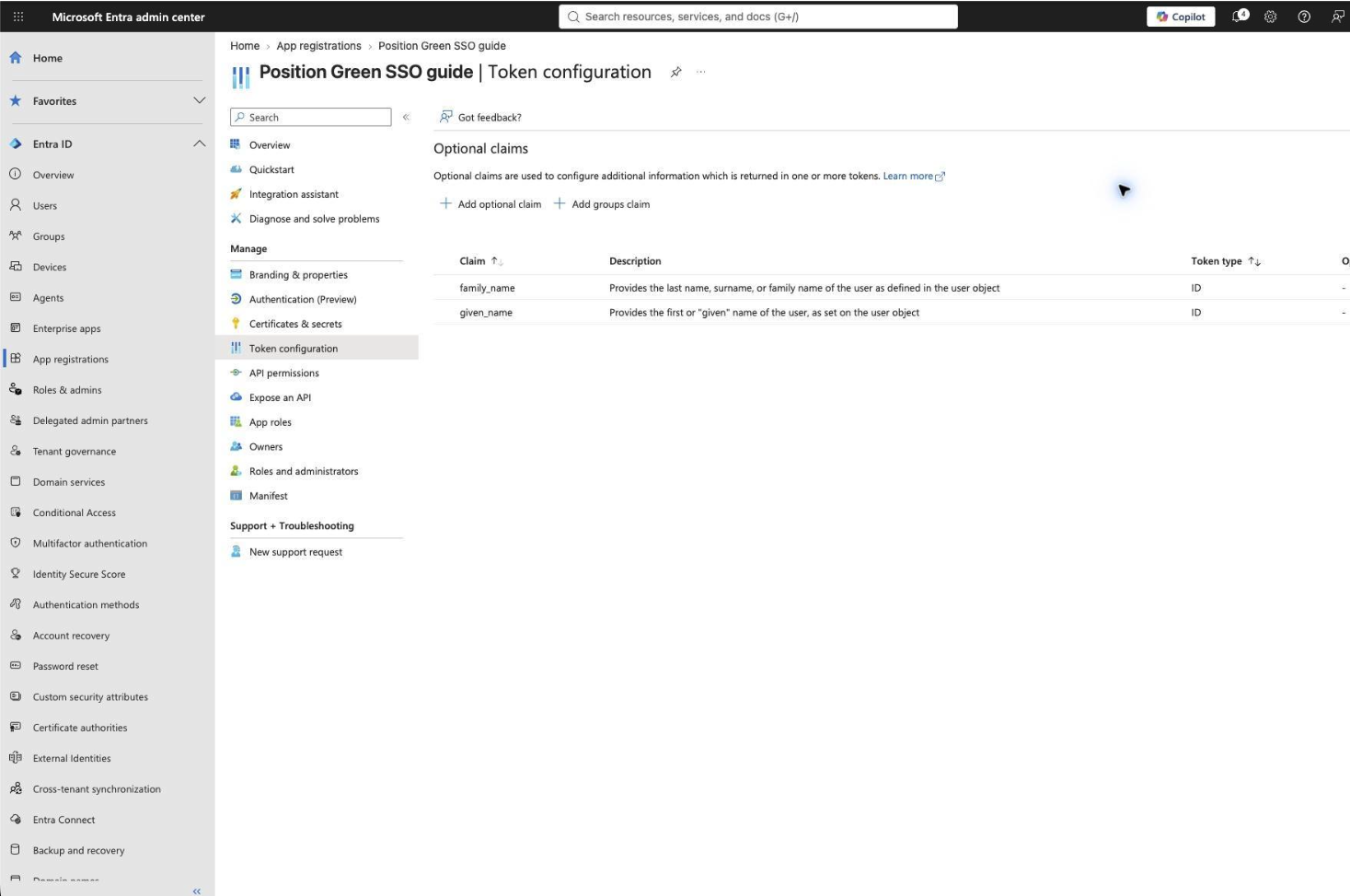 Add the given_name and family_name ID-token claims]
Do not enable ID tokens under implicit or hybrid flows. Position Green uses the authorization-code flow. Beyond the profile permission requested above, no group claim, application role, or Microsoft Graph data permission is required for this setup.
5. Deliver the values to Position Green
Provide these three values:
- Directory (tenant) ID
- Application (client) ID
- client secret Value
Agree the activation time with your Position Green contact before credentials are entered. Saving a complete configuration or submitting credentials for a pending one enables SSO routing for the configured email domains. There is no separate approval or activation step. The recommended option is direct entry:
- Send the Directory (tenant) ID to your Position Green contact. It is not a secret and is not entered on the credentials page.
- Wait until your Position Green contact confirms that the pending SSO request is ready and that you should activate it.
- Sign in to Position Green with an existing Tenant Administrator account.
- Open Your account → SSO credentials.
- Select the correct tenant and confirm the provider name. If two tenants have the same customer and tenant names, Position Green includes each tenant's unique ID in the label so they can be distinguished.
- Paste the Application (client) ID and client secret Value.
- Select Submit credentials and confirm the success message. The form disappears. This confirms submission, not successful sign-in; continue with the test in section 6.
This optional page does not reveal the issuer, domains, redirect URL, routing rules, or other SSO settings. The submitted secret cannot be read back or replaced from this page.
Record the secret's expiry date and contact Position Green before it expires. Active SSO credentials are rotated by Position Green and cannot be replaced from this page.
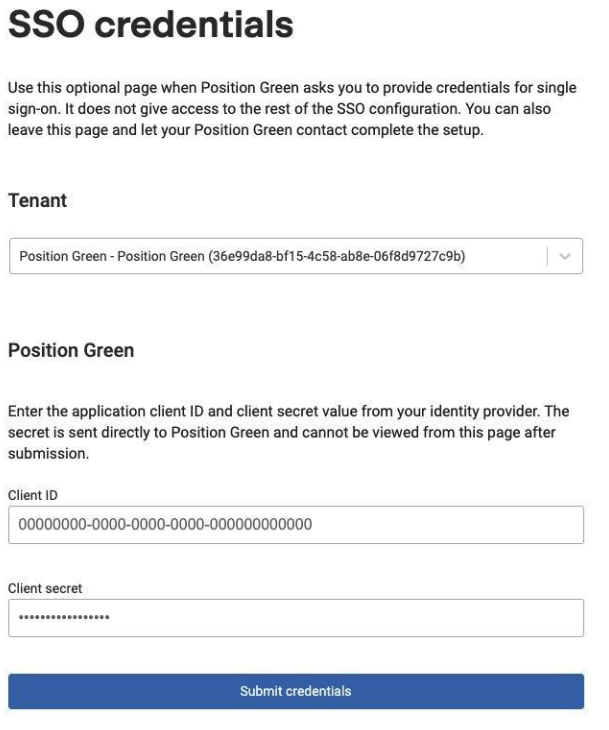
Enter the client ID and secret in Position Green]
If you cannot use the direct-entry page, send the client ID and tenant ID normally and share the secret value only through the secure method agreed with your Position Green contact.
6. Test the connection
The Direct SSO sign-in URL is the permanent Position Green link for your Entra connection. Opening it skips the Position Green email-address prompt and starts Entra sign-in immediately. It does not bypass Entra authentication: if you already have an active Entra session, sign-in may complete without another prompt; otherwise Entra asks you to authenticate and applies your organisation's normal MFA and Conditional Access policies. After testing, you can bookmark the URL or add it to your intranet or application launcher.
- Ask your Position Green contact for the Direct SSO sign-in URL.
- Open it in a private browser window.
- Sign in with an Entra account whose email belongs to one of the configured domains.
- Confirm that Position Green opens the expected tenant.
The first successful SSO login can create the Position Green user automatically from the returned email, first name, and last name. A redirect to Microsoft alone is not a complete test.
Admin consent is normally optional for the OIDC permissions used here. Your Entra consent policy may require an administrator to approve the application, or an administrator may grant consent once to avoid individual consent prompts.
Troubleshooting
- AADSTS50011 or redirect URI mismatch: compare Entra's Web redirect URI character-for-character with the Position Green Redirect URL.
- Invalid client secret: confirm that Position Green received the secret Value, not the Secret ID, and that the secret has not expired.
- Missing first or last name: confirm that
given_nameandfamily_nameare configured as ID-token optional claims and populated on the Entra user. - The user is asked for consent: this is expected when user consent is allowed and admin consent has not been granted. Ask your Entra administrator if organisational policy blocks consent.
- Microsoft authentication succeeds but Position Green rejects the user: confirm that the account's email belongs to a domain configured for this SSO connection.
- The wrong tenant opens: stop testing and ask Position Green to verify the email-domain routing before trying another account.
Was this article helpful?
That’s Great!
Thank you for your feedback
Sorry! We couldn't be helpful
Thank you for your feedback
Feedback sent
We appreciate your effort and will try to fix the article